Code Editor
Cyclone Manual - Code Editor
The Code Editor allows the user to create, load, and modify MCNP input files
Syntax Highlighting and Code Folding
In the Code Editor, comments, numbers, and MCNP keywords are displayed in different colours. Blank lines and Cyclone parameters are also highlighted. Code folding is available for comment blocks and for statements that extend across multiple lines. The format of the MCNP input file still requires the use of a title card and blank-line delimiters between card blocks. See Figure 19.
Insert Materials
Cyclone includes all materials from the Pacific Northwest National Lab (PNNL) Compendium of Material Composition Data \5\ , along with any user-defined materials (described in Section 18). Selecting Insert Material opens the material table, where entries can be filtered and sorted. After choosing a material, either double-clicking it or clicking Insert opens a new view. Here, the user can assign a material number, expand natural elements into their isotopes, condense the output, override default nuclear cross-section data (e.g., specify a particular library), and override other default data linked to the material. See Figure 22 and Figure 23.
Insert Response Functions
Similar to materials, Cyclone includes a list of response functions from \6\ and [7], along with any user-defined responses (described in Section 19). The list can be sorted and filtered, and each response can be assigned an insert style, interpolation method, and response number. Selecting Insert Response opens a menu where the user can configure the styling, response number and interpolation settings. Response functions are inserted and formatted as DE and DF cards. See Figure 24 and Figure 25.
Evaluate
Cyclone includes a built-in calculator for on-the-fly calculations. It supports all mathematical operations and functions listed in Table 2 and Table 3. To use the calculator, highlight the text containing the expression, then select Evaluate from the context menu or press Ctrl + E. See Figure 20 and Figure 21.
App Bar
The App Bar provides access to the main Cyclone functions. From the main menu, the user can create a New input (blank or from a Template), Open an existing file, Save, use Save As, or access the Demos. The Cyclone button runs Cyclone on the current input. Main Render displays the model in the main window, while the Popout button allows 3D and 2D views to be opened in separate windows. See Figure 29.
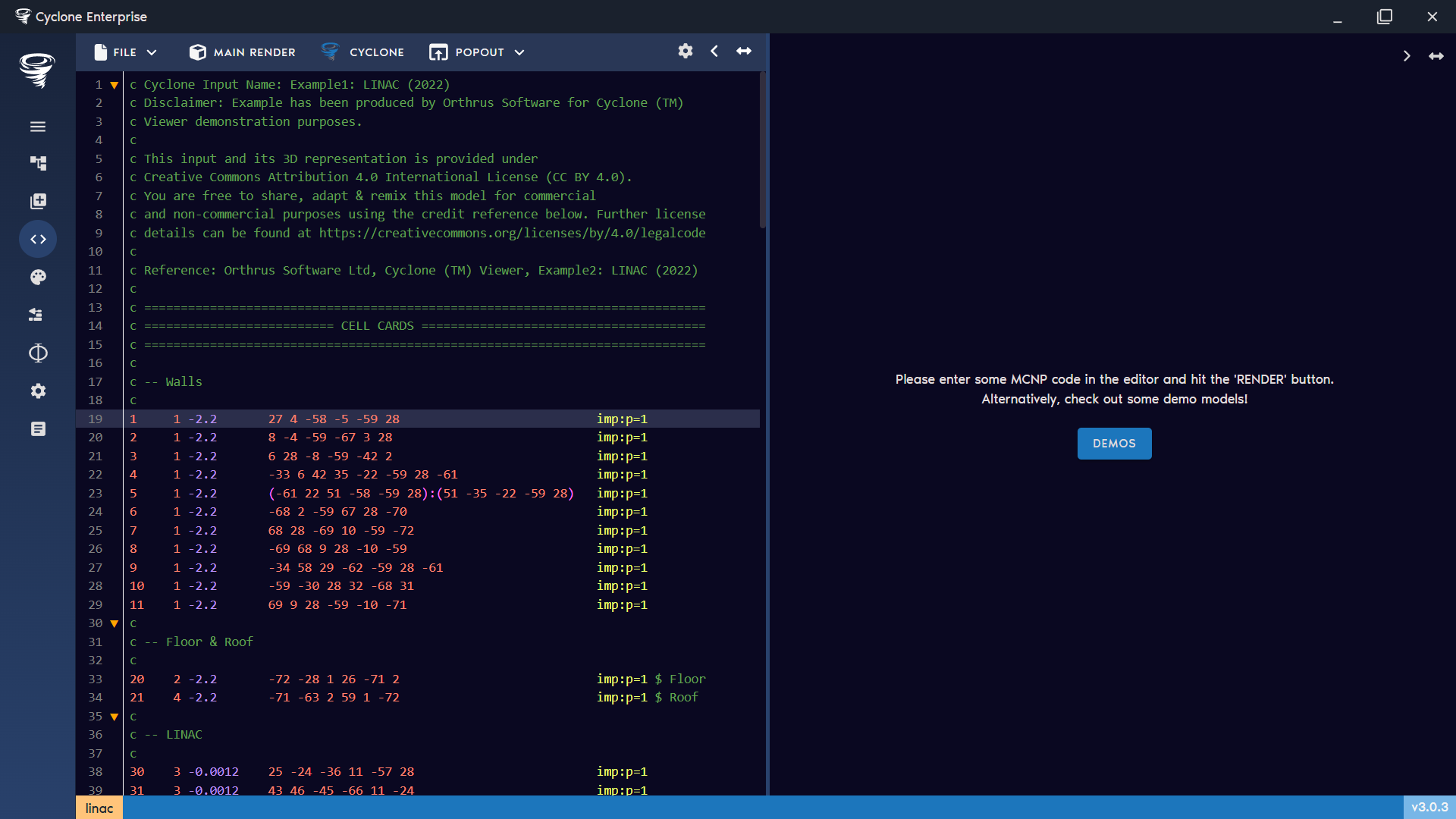
Figure 19: Code editor
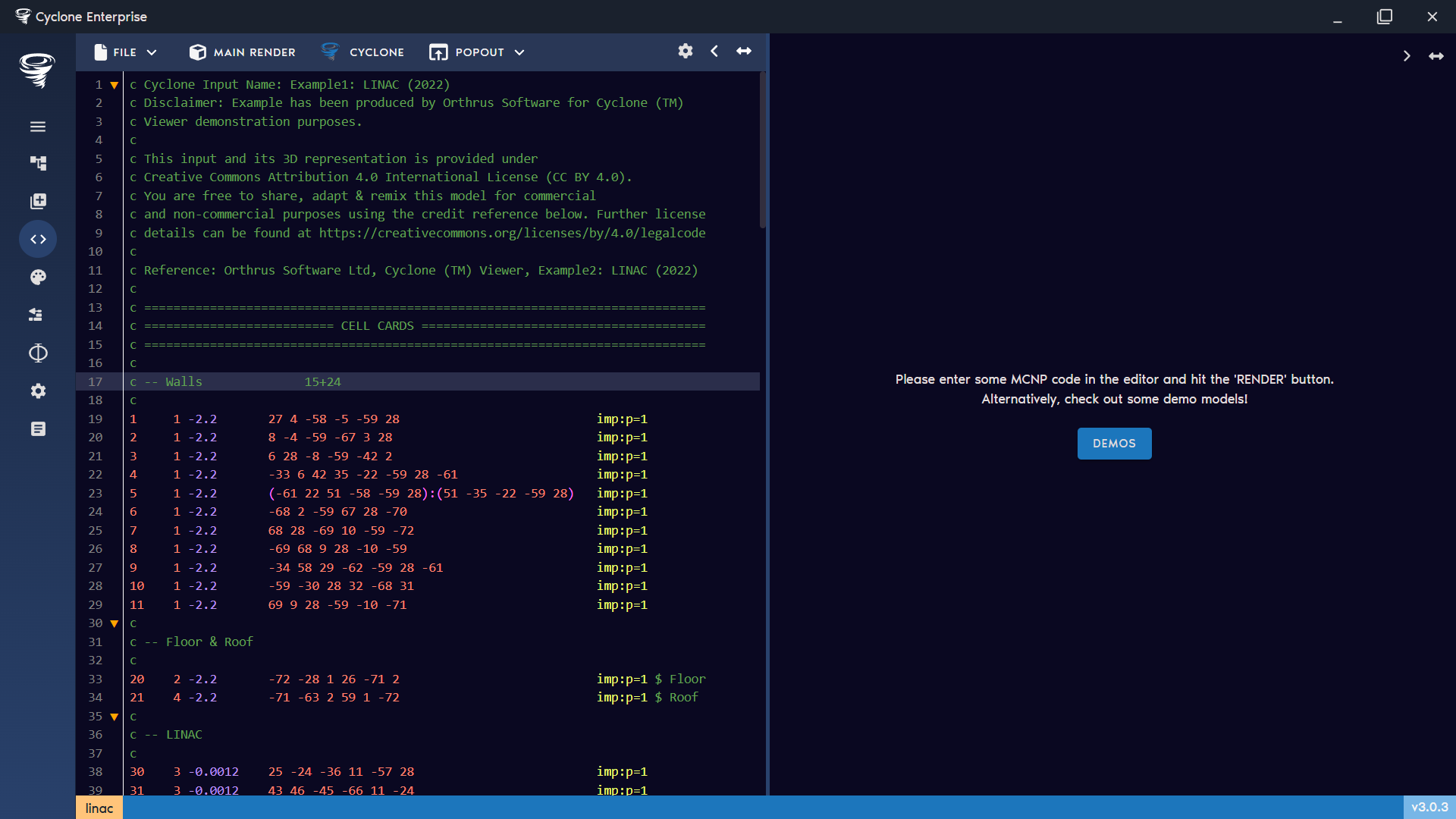
Figure 20: Maths function to evaluate
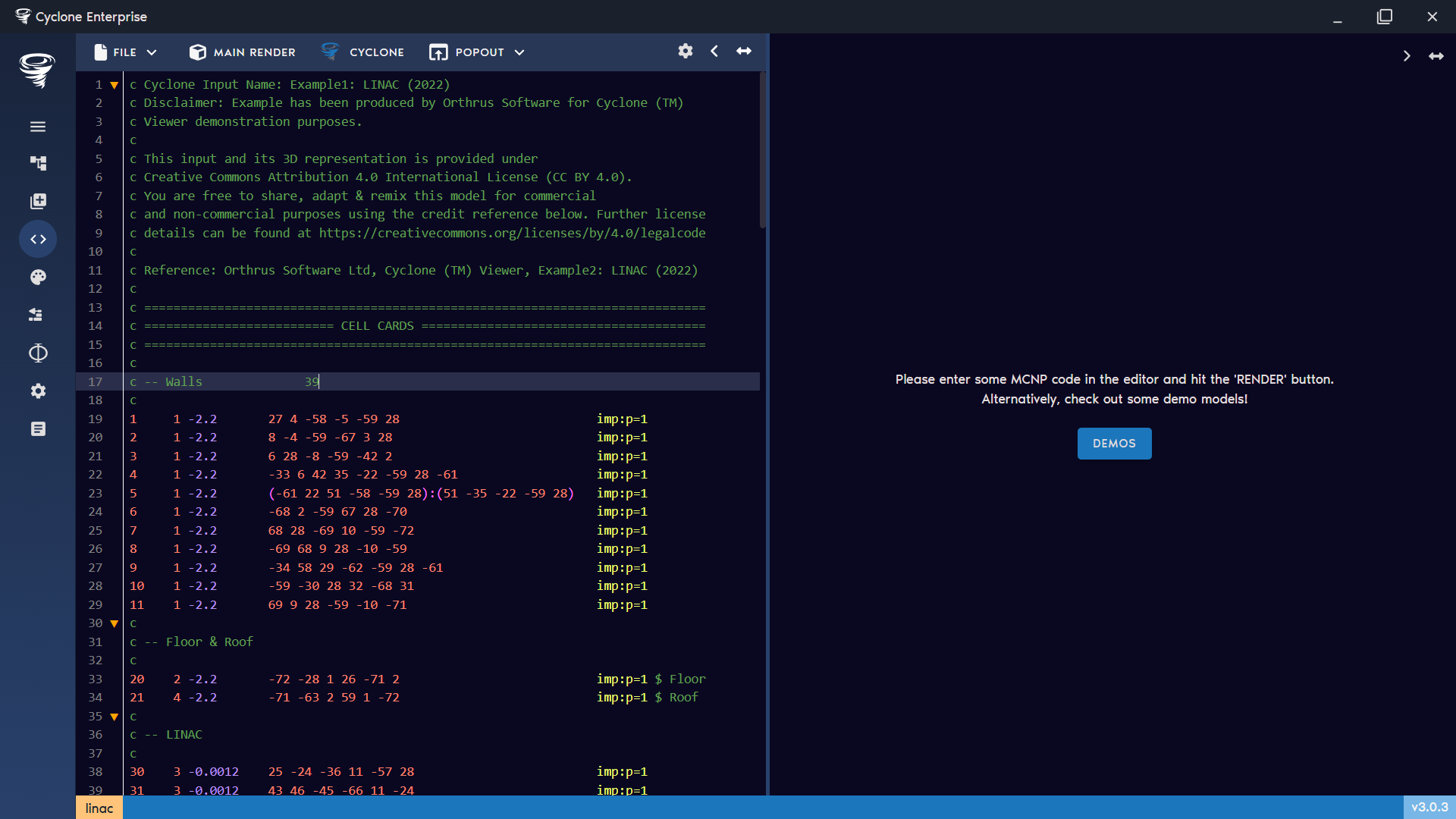
Figure 21: Evaluated maths function
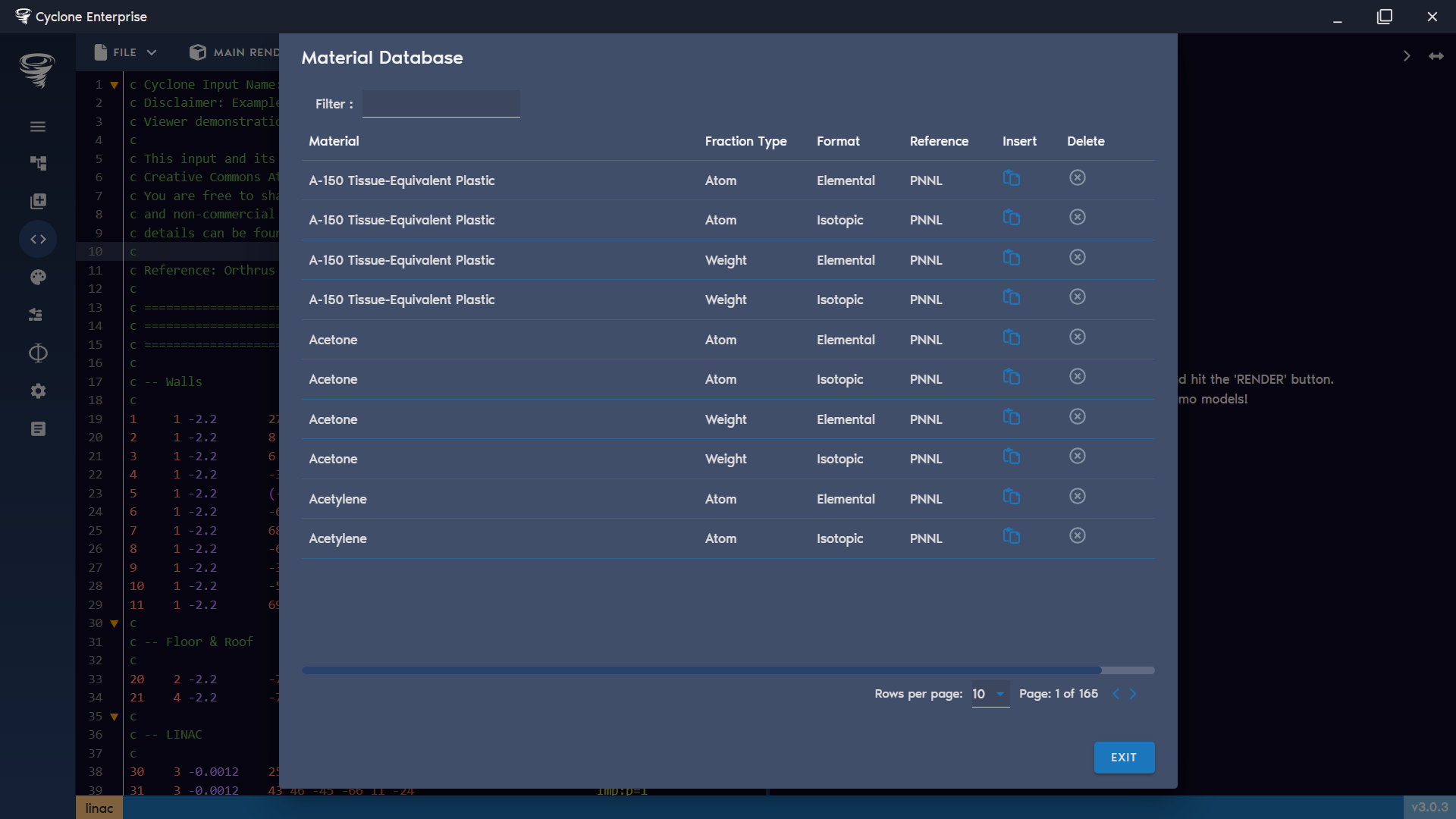
Figure 22: Insert material from database
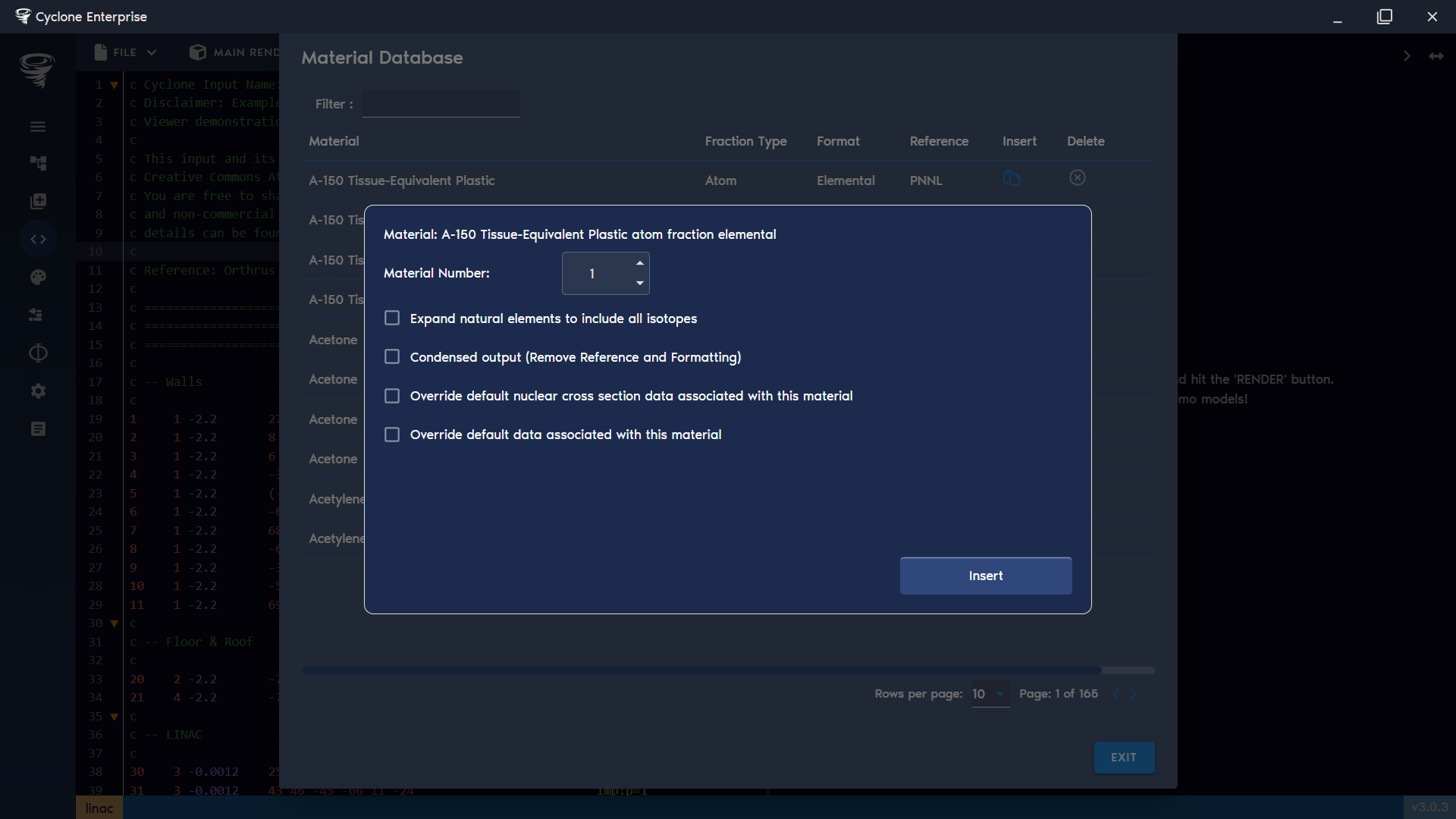
Figure 23: Material insert options
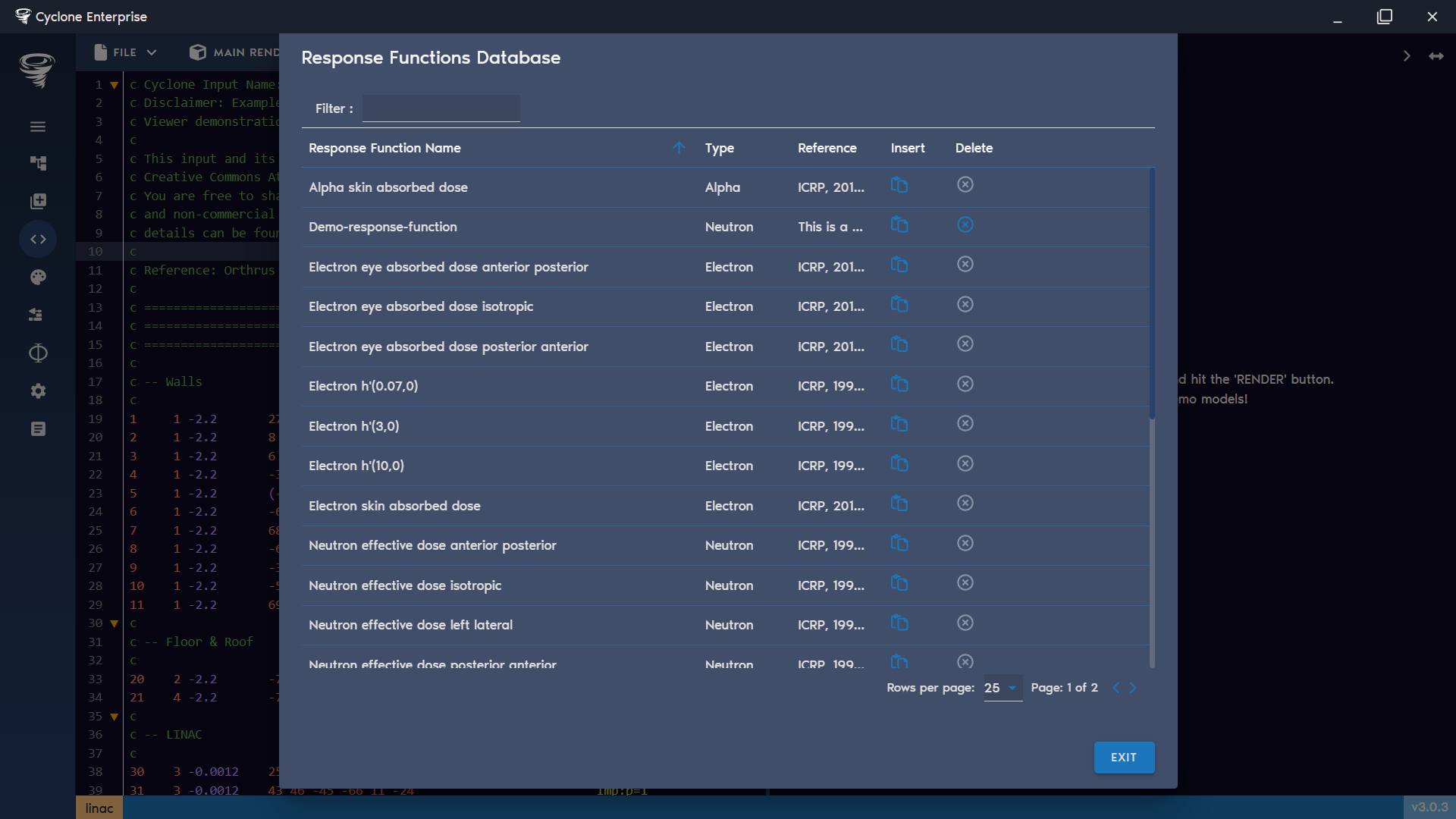
Figure 24: Insert response function from database
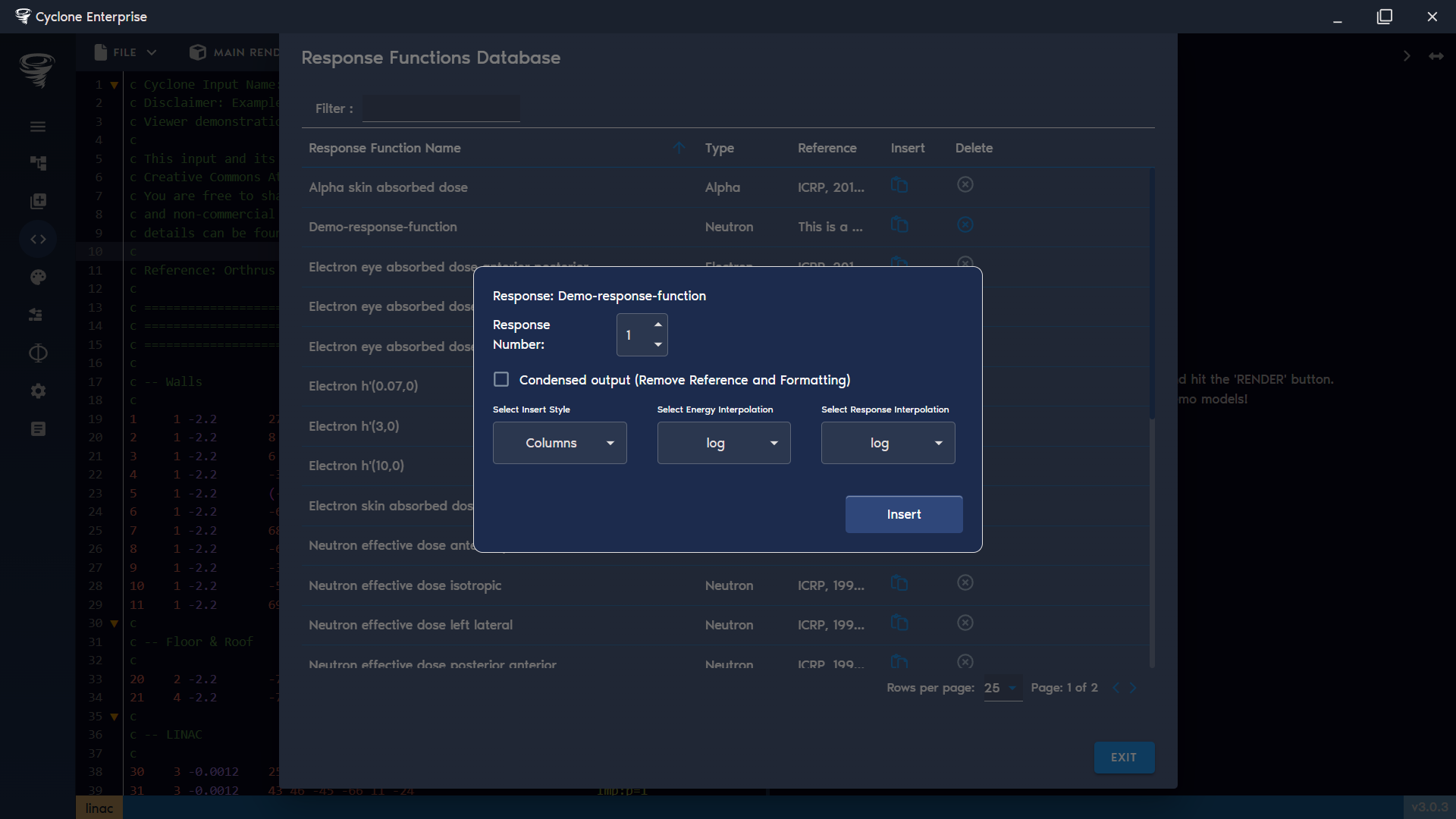
Figure 25: Insert response options
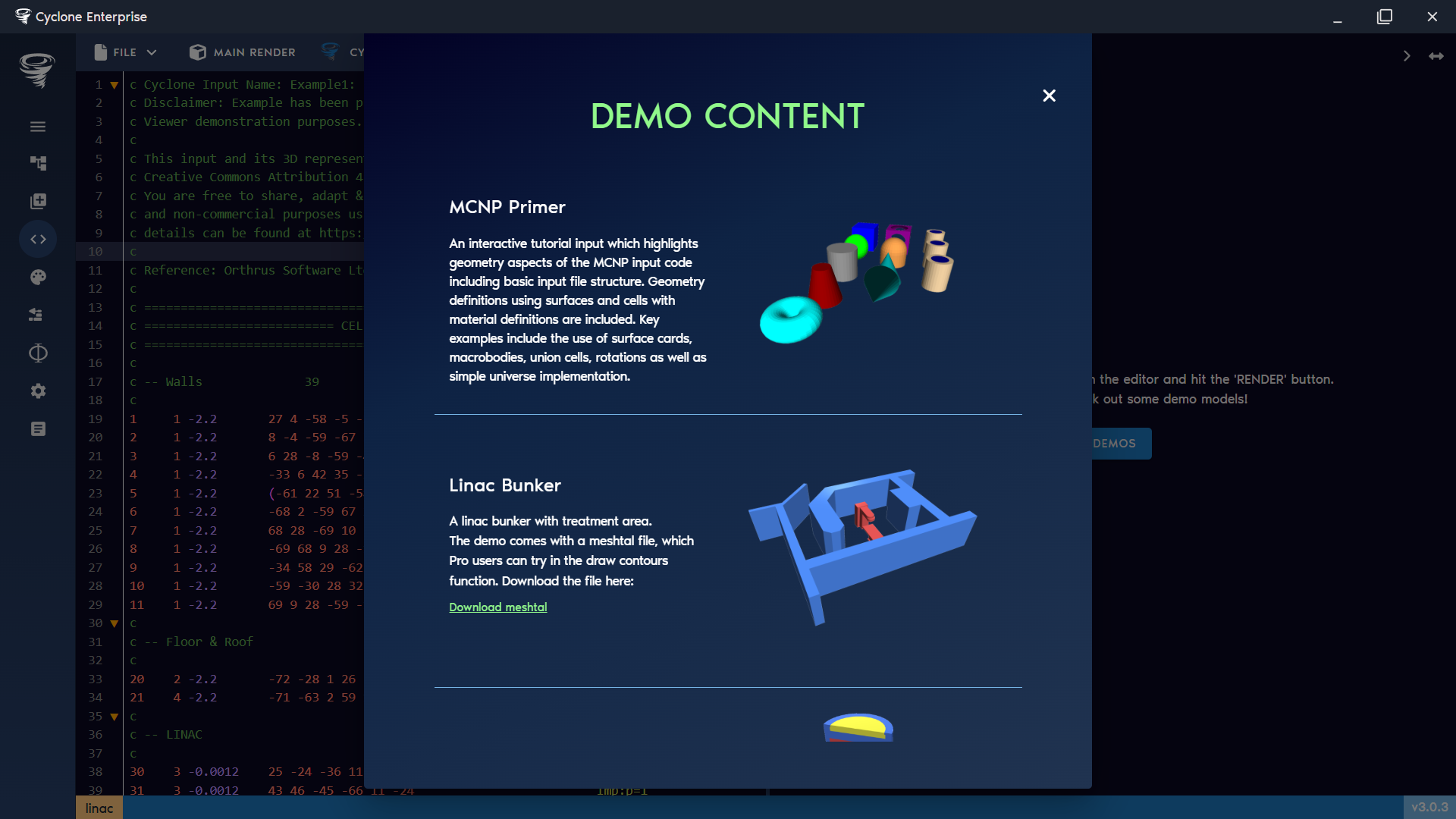
Figure 26: Open demo
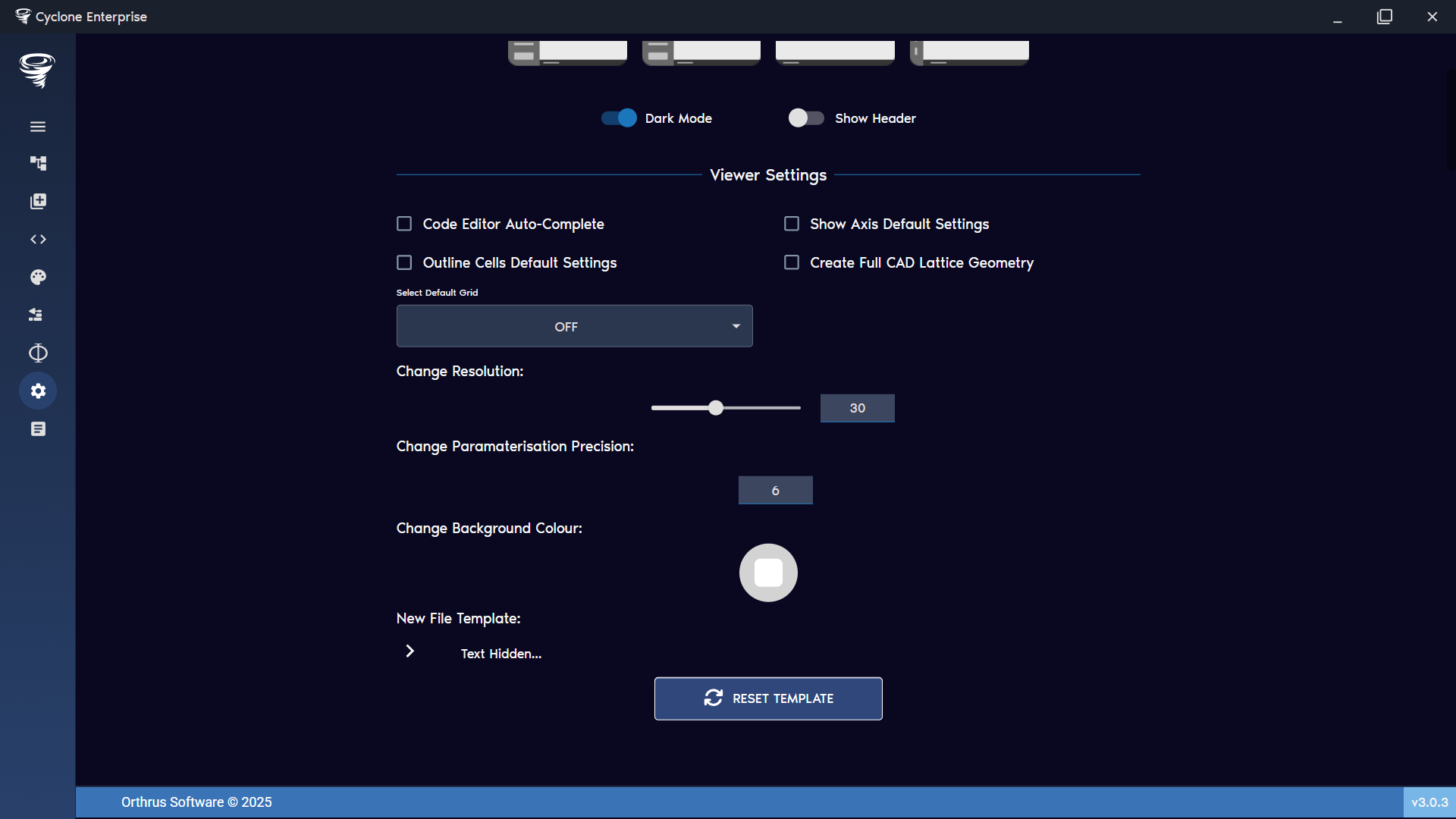
Figure 27: Template settings (hidden)
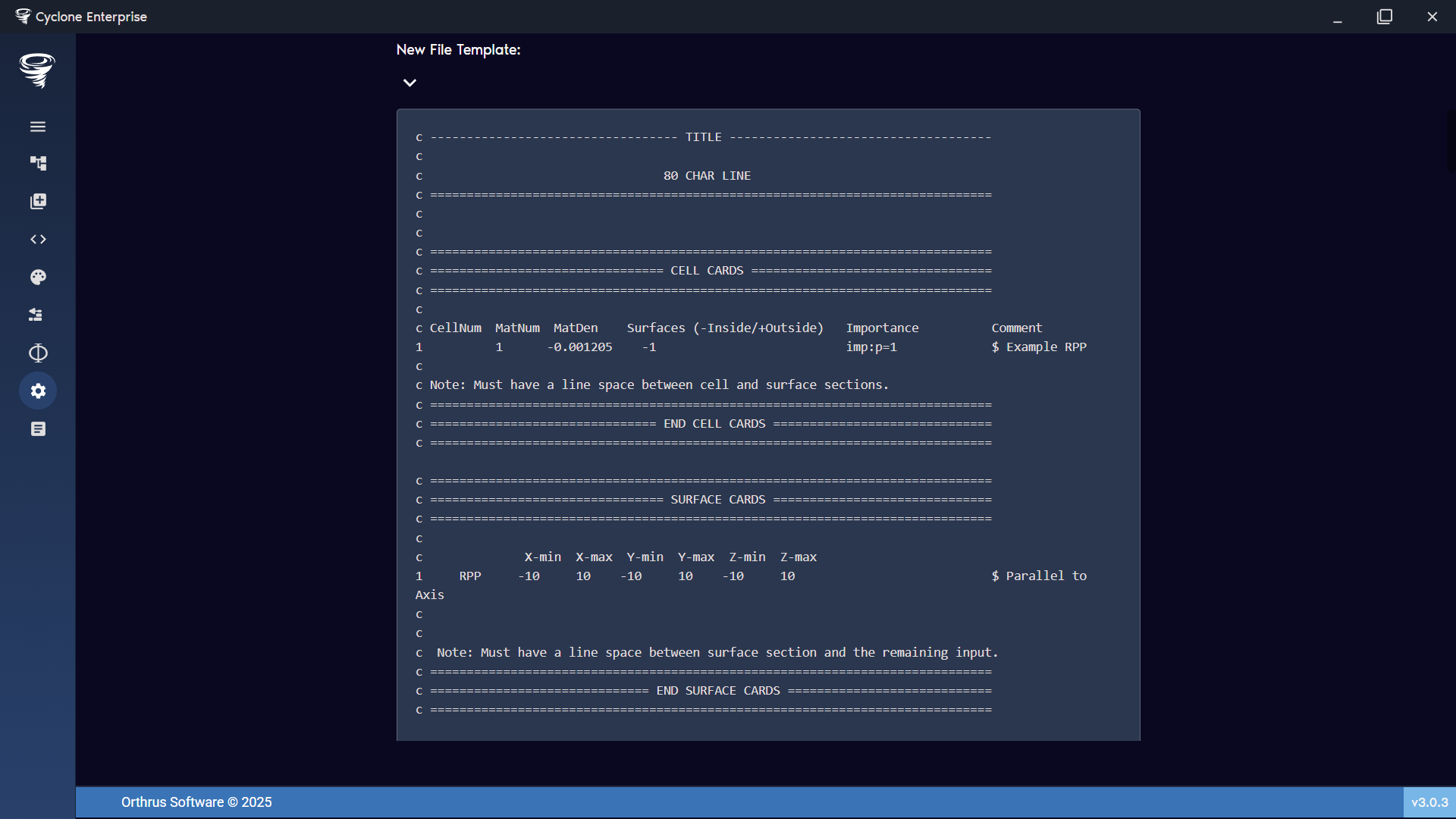
Figure 28: Template settings (visible)
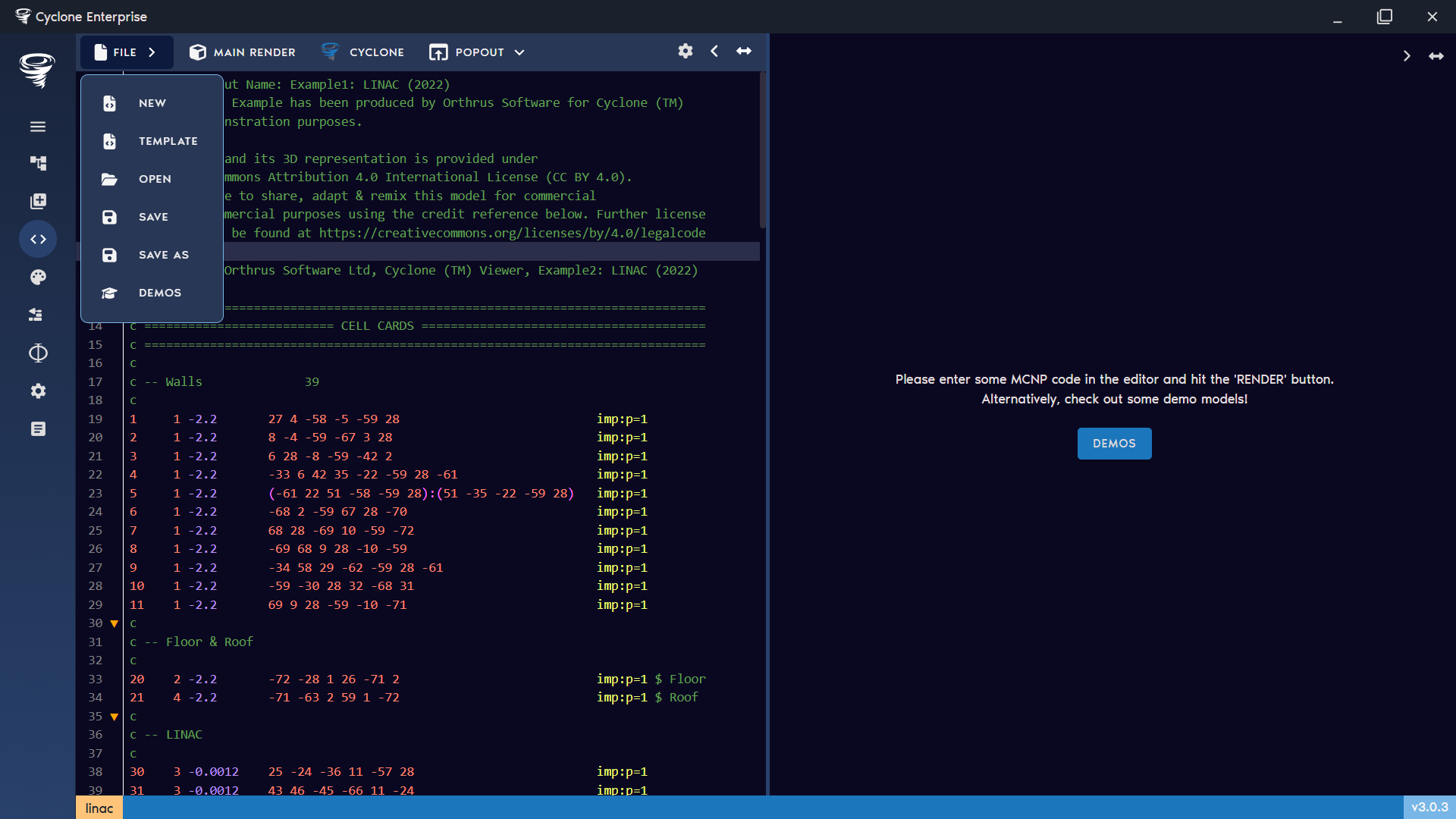
Figure 29: App bar