File Manager
Cyclone Manual - File Manager
The File Manager allows the user to navigate their local files and any mapped drives to open files in the Code Editor or the popout editor. Multiple tabs can be opened in the File Manager in a similar fashion to the Windows File Explorer. See Figure 3 and Figure 4.
The File Manager allows the user to select files, interact with them, create folders, and delete files and folders.
Operations
A full list of operations is outlined below:
Default operations (when nothing is selected):
-
Select All
-
New Folder
-
New File
Folder selected — available operations:
-
Cut
-
Copy
-
Delete
-
Download (zips the folder before downloading)
-
Rename
Standard file selected — same as folder operations, plus:
- Edit (opens the file in the text editor)
MCNP file selected — includes all standard file operations, plus:
-
Calculation (open Cyclone run options)
-
3D View
-
2D Slice
-
Edit (opens in full Code Editor)
-
Edit – External (opens the file in the popout text editor)
Context menu — contains all the above options, plus:
- Open in Explorer (reveals the file or folder in Windows File Explorer)
Selecting a folder and clicking download zips the entire directory in a zipped folder. By default, double clicking on a file will either open it in the popout editor or the full Code Editor (MCNP file extensions only). By default, any file without an extension will try to open in the full Code Editor.
Running MCNP from Cyclone
Cyclone provides the ability to execute MCNP directly from within the interface. When an MCNP file is selected, the Calculation button becomes available. Selecting this button opens the main Cyclone menu. For detailed instructions, see Section 8.
Default file extensions for MCNP can be modified in the settings tab. See Figure 5.
How does Cyclone run MCNP
As previously mentioned in Section 4, Cyclone does NOT include the MCNP executable. Cyclone expects MCNP to be accessible from the command line as mcnp.exe. In most cases, this requires adding MCNP to the system or user PATH environment variable. The command used to launch MCNP can be changed in the settings, see Figure 6.
This command can point to anything—a renamed MCNP executable, a batch script, a Python script or even a full file path if needed.
It is the responsibility of the user to ensure they hold a valid MCNP licence.
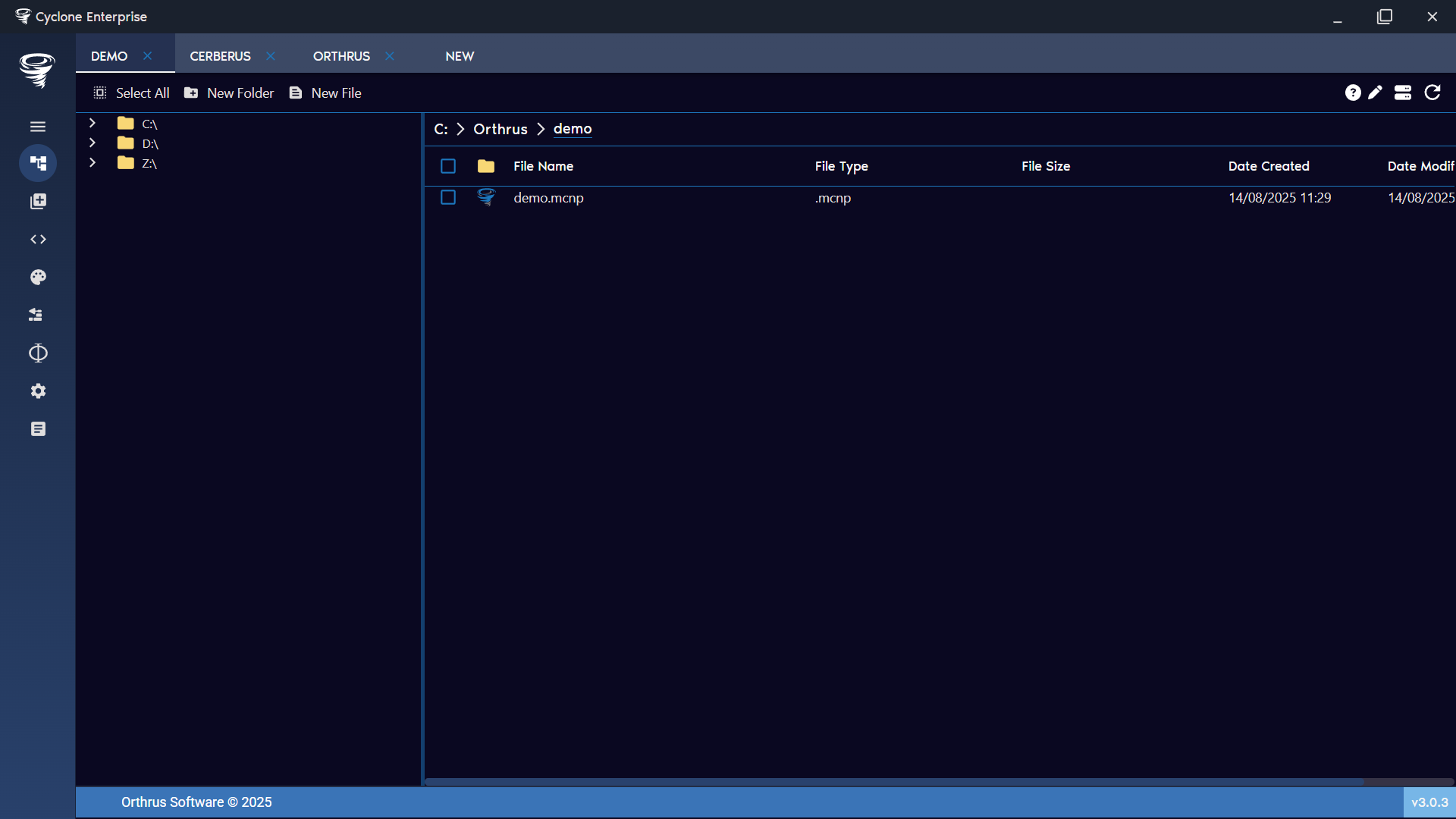
Figure 3: File manager overview
Figure 4: File manager tabs
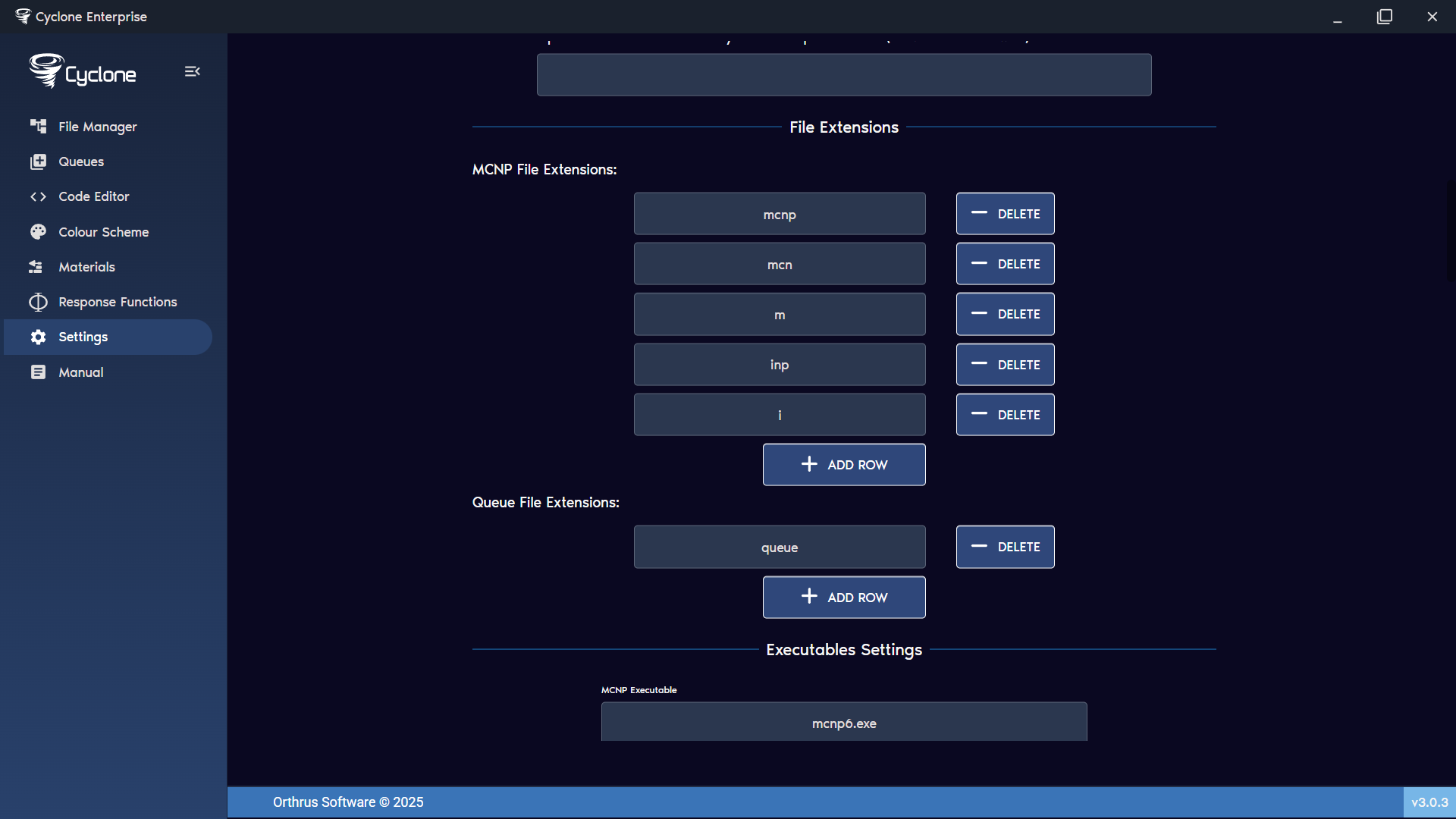
Figure 5: File manager extension settings
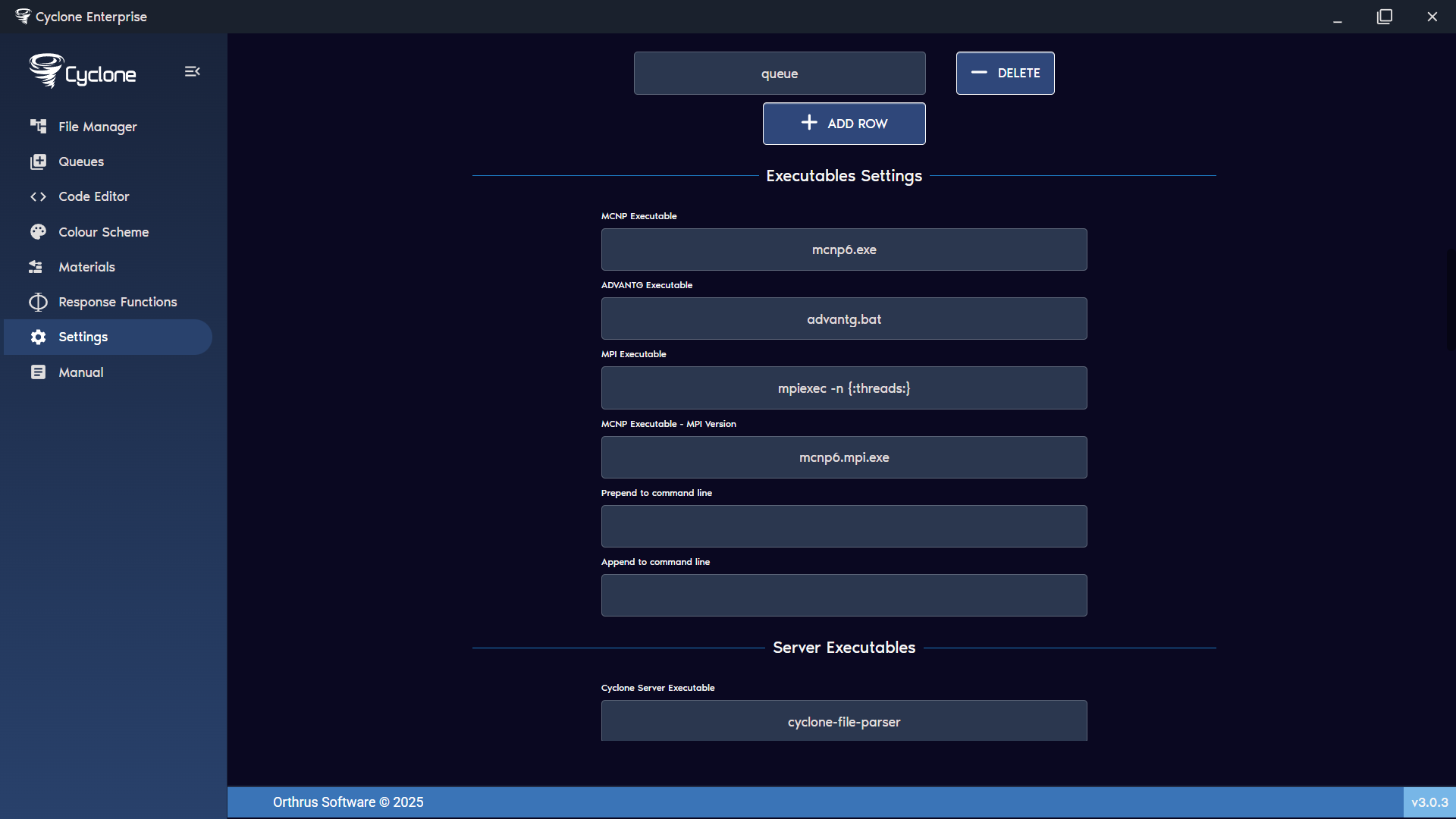
Figure 6: Executable settings