Settings
Cyclone Manual - Settings
Cyclone is highly customisable to the users preference. Visual settings, Code Editor settings, server settings (Enterprise Plan) can all be changed.
Viewer Settings
You can configure default settings for both the Code Editor and the 3D viewer (Figure 101).
Code Editor Defaults:
-
Enable or disable auto-complete.
-
Define a code template that is inserted when selecting New from Template in the editor. By default, the template is collapsed; clicking the arrow expands it to a box where the user can edit the text.
3D Viewer Defaults:
-
Start with axis displayed.
-
Start with grid displayed.
-
Start with cell outlines enabled.
-
Choose whether to build the full lattice in the 3D CAD processor.
-
Set the resolution of the CAD build.
-
Adjust the parameterisation precision Cyclone uses when expanding parameters.
-
Change the default background colour.
File Manager
The File Manager can be restricted to a specific folder, defined in this section. The user can also manage the list of recognised file extensions (Figure 102):
-
MCNP file extensions – can be added, modified, or removed.
-
Queue file extensions – can be added, modified, or removed (Enterprise Plan).
Server Settings
To communicate with a remote server, Cyclone requires connection details and path mappings (Figure 105).
-
You can test the connection directly from this panel.
-
Windows paths can be mapped to corresponding Unix paths so that files are correctly located on both systems.
-
Authentication is handled through profiles, where the user define the username, hostname, port number, and private key location.
-
The server-side location of Cyclone must also be specified.
-
Finally, the location of queue scripts is set here, allowing Cyclone to interact with the remote Queue System.
Clear Cache
Cyclone uses the temporary directory for its build processes. If a build fails, or if an input is built without being saved, the generated files are stored here. Over time, these files can accumulate. The user can either remove them manually or click the Clean Temporary Directory button to clear them automatically. See Figure 31.
Supported Sections
Each JSON file may contain the following top-level sections:
-
viewer-settings – Viewer and editor display preferences.
-
file-manager-settings – File extension handling and restrictions.
-
executables-settings – Local paths to MCNP/ADVANTG/MPI executables.
-
server-executables-settings – Remote server paths to executables.
-
submission-settings – Queue/profile settings for job submission.
Each section is optional. Only present fields will be applied during import.
Importing Settings
When importing:
-
JSON keys are normalized:
-
Case-insensitive.
-
Spaces/underscores → hyphens.
-
Multiple hyphens collapsed.
-
Example: Background Colour, background_colour, and BACKGROUND-COLOUR are all treated as background-colour.
-
Each field is validated:
-
Booleans can be true/false or 1/0.
-
Strings must be strings.
-
Numbers must be valid numbers.
-
Lists must be arrays of the correct type.
-
-
Invalid fields are skipped, and errors are reported in the user interface.
Example – Minimal Import
JSON1{ 2 "viewer-settings": { 3 "axis": true, 4 "grid": "XY", 5 "resolution": 20, 6 "precision": 6, 7 "background-colour": [0.0, 0.0, 0.0, 1.0], 8 "template": "c cell 1", "1 0 -1" 9 }, 10 "file-manager-settings": { 11 "mcnp-extensions": [".i", ".inp"], 12 "queue-extensions": [".q"], 13 "restricted-path": "C:\\restricted" 14 } 15}
This sets axis display on, uses an XY grid, sets resolution/precision, applies a black background colour (RGBA, normalised to 1), and loads a code template.
Example – Full Import
JSON1{ 2 "viewer-settings": { 3 "axis": true, 4 "auto-complete": true, 5 "outline-cells": false, 6 "cad-lattice": true, 7 "resolution": 25, 8 "precision": 8, 9 "background-colour": [1.0, 1.0, 1.0, 1.0], 10 "template": ["c example template", "10 0 -1"], 11 "grid": "OFF" 12 }, 13 "file-manager-settings": { 14 "mcnp-extensions": [".i", ".inp"], 15 "queue-extensions": [".pbs", ".q"], 16 "restricted path": "C:\\restricted" 17 }, 18 "executables-settings": { 19 "mcnp-executable": "mcnp6.exe", 20 "advantg-executable": "advantg.bat", 21 "mpi-executable": "mpiexec.exe", 22 "mcnp-mpi-executable": "mcnp6_mpi.exe", 23 "prepend-command": "module load mcnp", 24 "post-command": "echo Job finished" 25 }, 26 "server-executables-settings": { 27 "mcnp-executable": "/opt/mcnp/mcnp6", 28 "advantg-executable": "/opt/advantg/advantg", 29 "mpi-executable": "/usr/bin/mpiexec", 30 "mcnp-mpi-executable": "/opt/mcnp/mcnp6_mpi", 31 "prepend-command": "module load mcnp", 32 "post-command": "echo Done", 33 "cyclone-executable": "/opt/cyclone/cyclone" 34 }, 35 "submission-settings": { 36 "profiles": [ 37 { 38 "username": "user1", 39 "hostname": "cluster1.example.com", 40 "port": 22, 41 "key": "C:\\keys\\id_rsa", 42 "location": "/home/user1/cyclone_jobs", 43 "template": ["#PBS -l nodes=1:ppn=4", "mcnp6 i=input"], 44 "submission-command": "qsub", 45 "queue-scripts": { 46 "get-queues": "qstat -q", 47 "get-jobs": "qstat -u $USER", 48 "get-jobs-full": "qstat -f", 49 "get-queue-machines": "pbsnodes -a", 50 "get-queue-info": "qstat -Qf", 51 "rerun-job": "qrerun", 52 "suspend-job": "qsuspend", 53 "resume-job": "qresume", 54 "hold-job": "qhold", 55 "release-job": "qrls", 56 "delete-job": "qdel", 57 "move-job": "qmove", 58 "hold-machine": "pbsnodes -o", 59 "clear-machine": "pbsnodes -c" 60 } 61 } 62 ], 63 "active-profile": 1, 64 "shared-drive-mappings": 65 { 66 "windows": "Z:\\", 67 "unix": "/mnt/shared" 68 } 69 70 } 71}
Example – Exported File
JSON1{ 2 "viewer-settings": { 3 "axis": true, 4 "auto-complete": false, 5 "outline-cells": true, 6 "cad-lattice": false, 7 "resolution": 20, 8 "precision": 6, 9 "background-colour": [0.0, 0.0, 0.0, 1.0], 10 "template": ["c default template"], 11 "grid": "XY" 12 }, 13 "file-manager-settings": { 14 "mcnp-extensions": [".i", ".inp"], 15 "queue-extensions": [".q"], 16 "restricted path": "C:\\restricted" 17 }, 18 "executables-settings": { 19 "mcnp-executable": "mcnp6.exe", 20 "advantg-executable": "", 21 "mpi-executable": "", 22 "mcnp-mpi-executable": "", 23 "prepend-command": "", 24 "post-command": "" 25 }, 26 "server-executables-settings": { 27 "mcnp-executable": "/opt/mcnp/mcnp6", 28 "advantg-executable": "", 29 "mpi-executable": "", 30 "mcnp-mpi-executable": "", 31 "prepend-command": "", 32 "post-command": "", 33 "cyclone-executable": "/opt/cyclone/cyclone" 34 }, 35 "submission-settings": { 36 "profiles": [ 37 { 38 "username": "user1", 39 "hostname": "cluster1.example.com", 40 "port": 22, 41 "key": "C:\\keys\\d_rsa", 42 "location": "/home/user1/cyclone_jobs", 43 "template": ["#PBS -l nodes=1:ppn=4", "mcnp6 i=input"], 44 "submission-command": "qsub", 45 "queue-scripts": { 46 "get-queues": "qstat -q", 47 "get-jobs": "qstat -u $USER", 48 "get-jobs-full": "qstat -f", 49 "get-queue-machines": "pbsnodes -a", 50 "get-queue-info": "qstat -Qf", 51 "rerun-job": "qrerun", 52 "suspend-job": "qsuspend", 53 "resume-job": "qresume", 54 "hold-job": "qhold", 55 "release-job": "qrls", 56 "delete-job": "qdel", 57 "move-job": "qmove", 58 "hold-machine": "pbsnodes -o", 59 "clear-machine": "pbsnodes -c" 60 } 61 } 62 ], 63 "active-profile": 1, 64 "shared-drive-mappings": 65 { 66 "windows": "Z:\\", 67 "unix": "/mnt/shared" 68 } 69 70 } 71}
Notes and Constraints
-
Background Colour: must be a list of 4 numbers [R, G, B, A], each between 0 and 1.
-
Grid: must be one of OFF, XY, YZ, XZ.
-
Profiles: multiple profiles can be stored; active-profile selects which one is active.
-
Drive mappings: always require both "windows" and "unix".
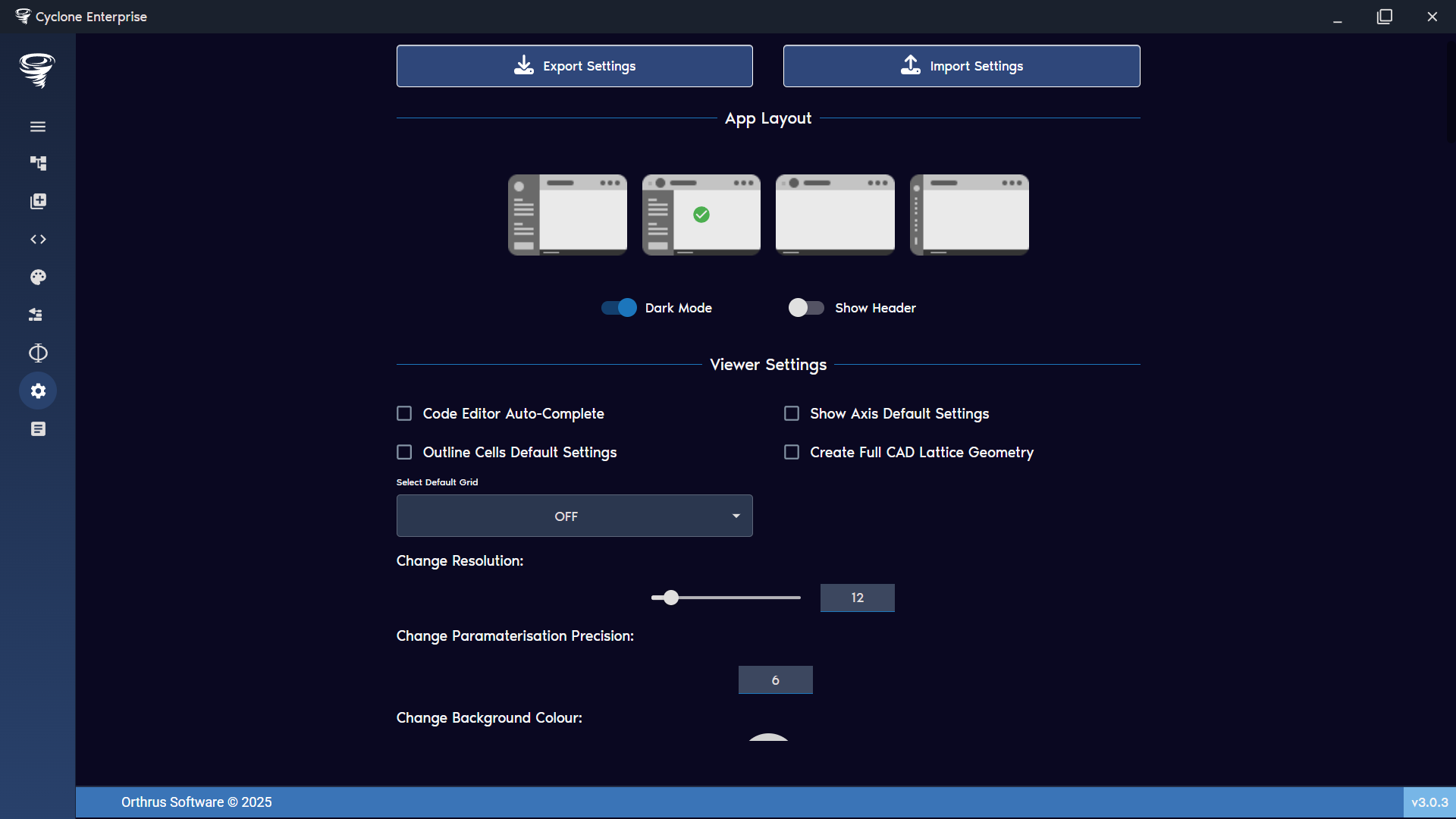
Figure 99: Settings – import/export
Figure 100: Settings – app layout
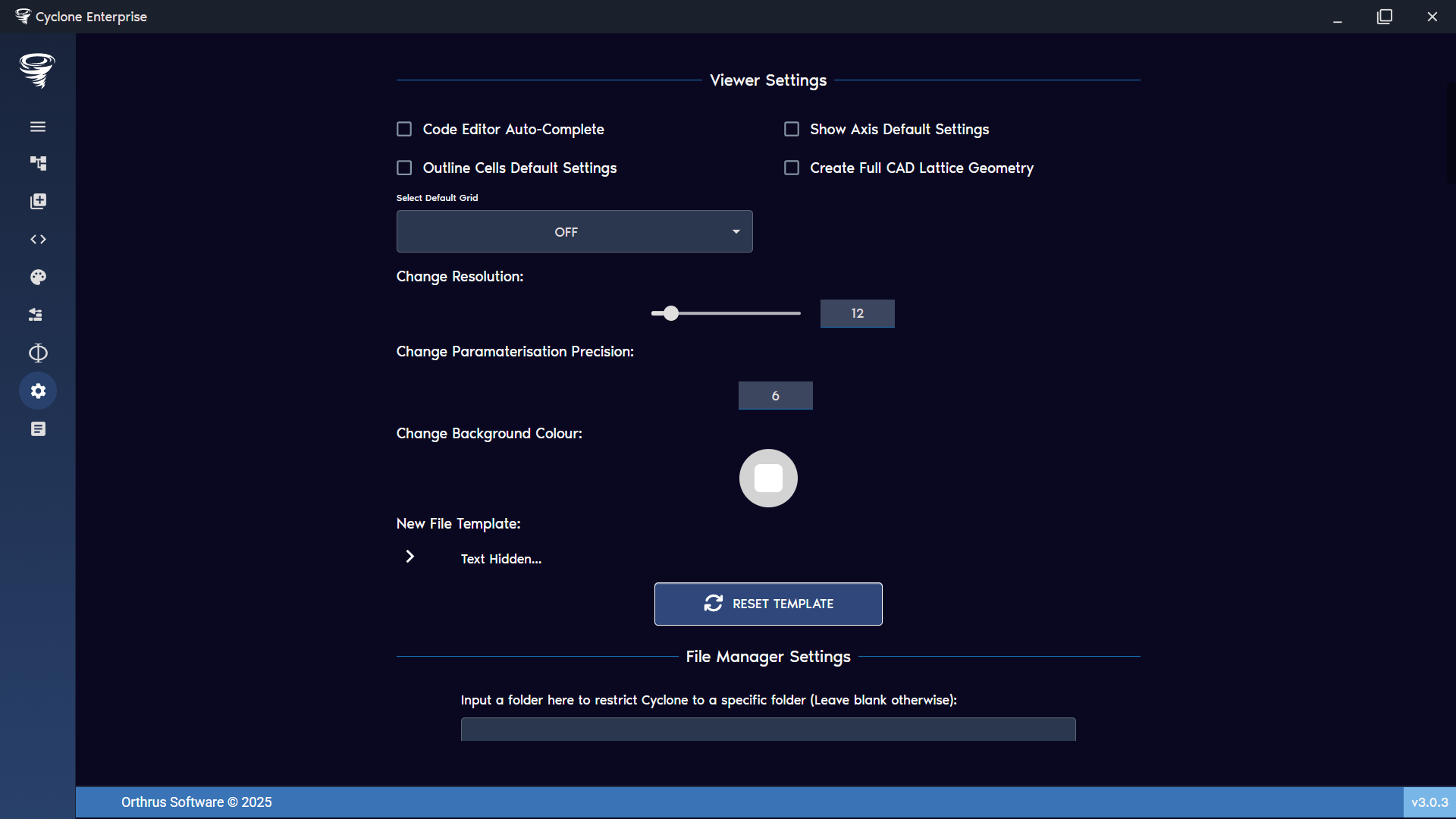
Figure 101: Settings – viewer settings
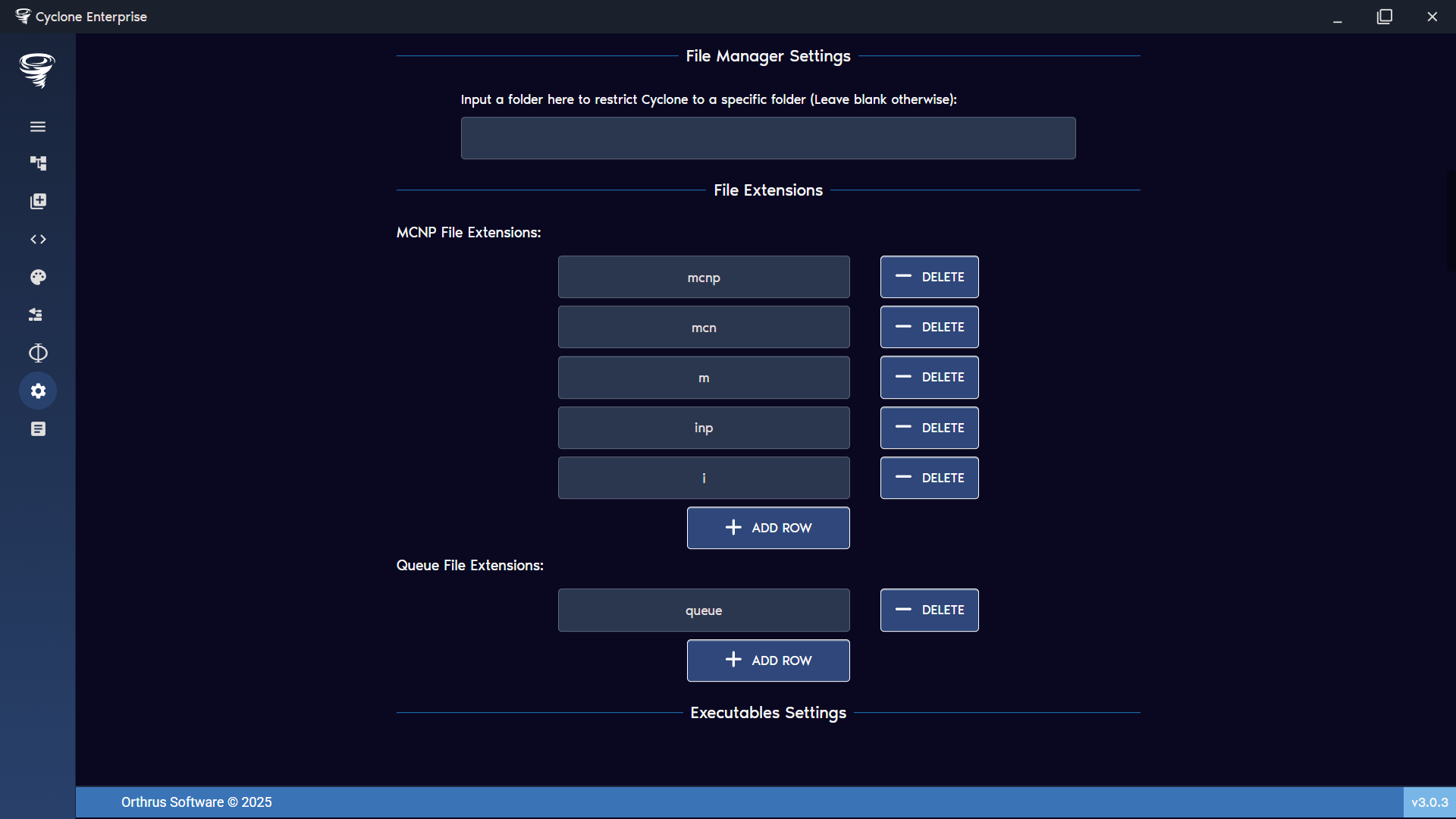
Figure 102: Settings – file manager settings
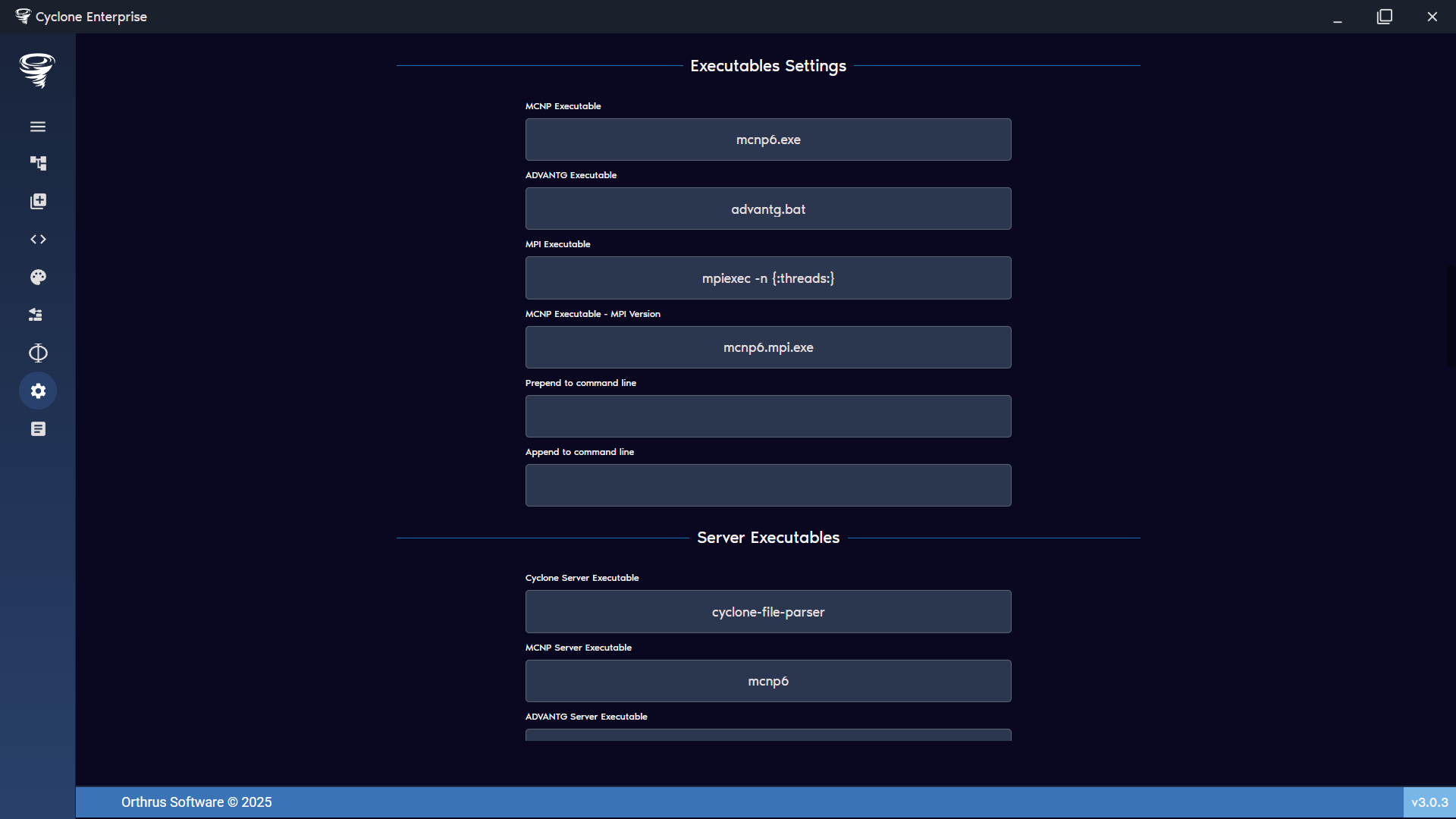
Figure 103: Settings – Executable settings
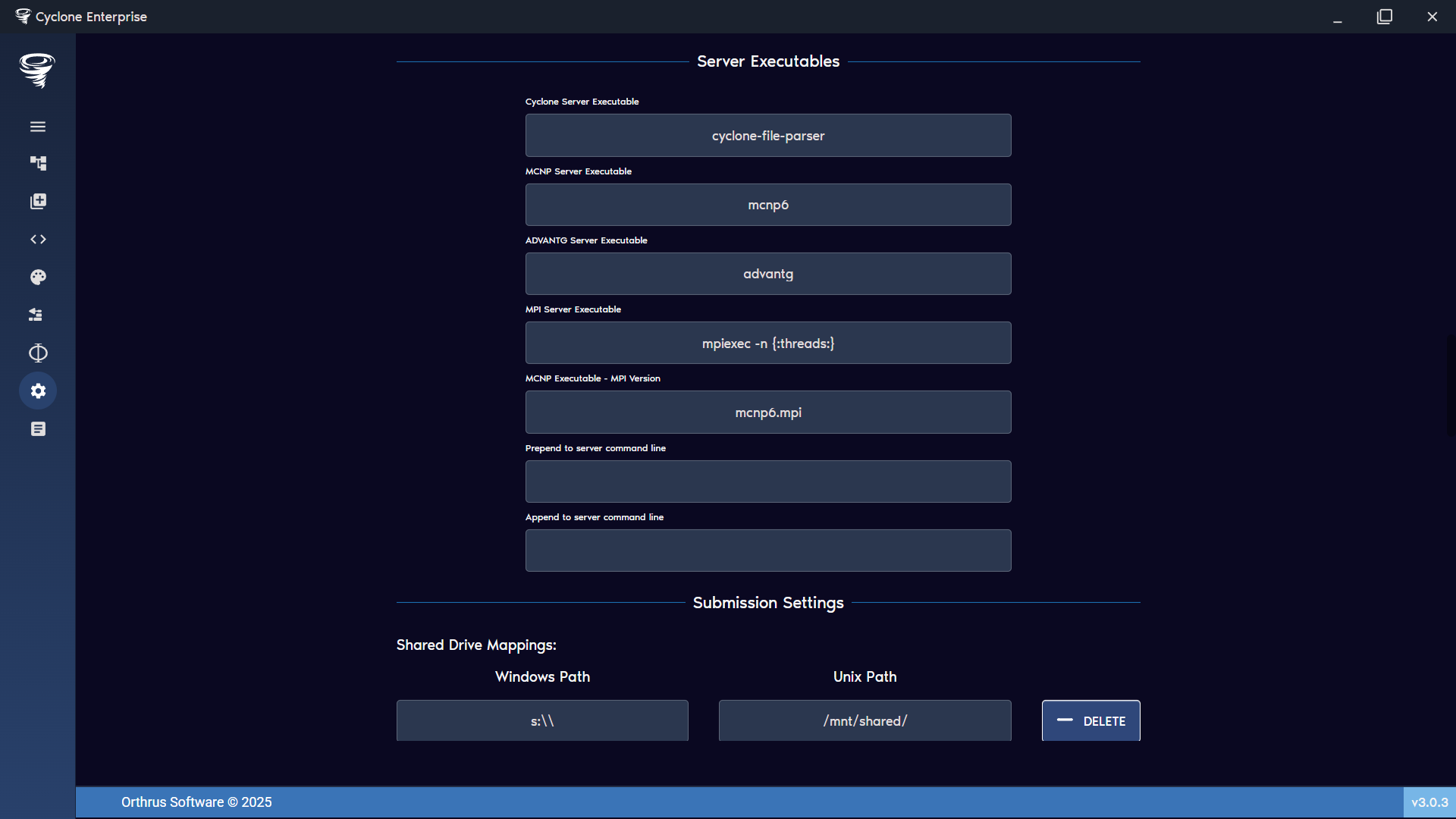
Figure 104: Settings – server executable settings
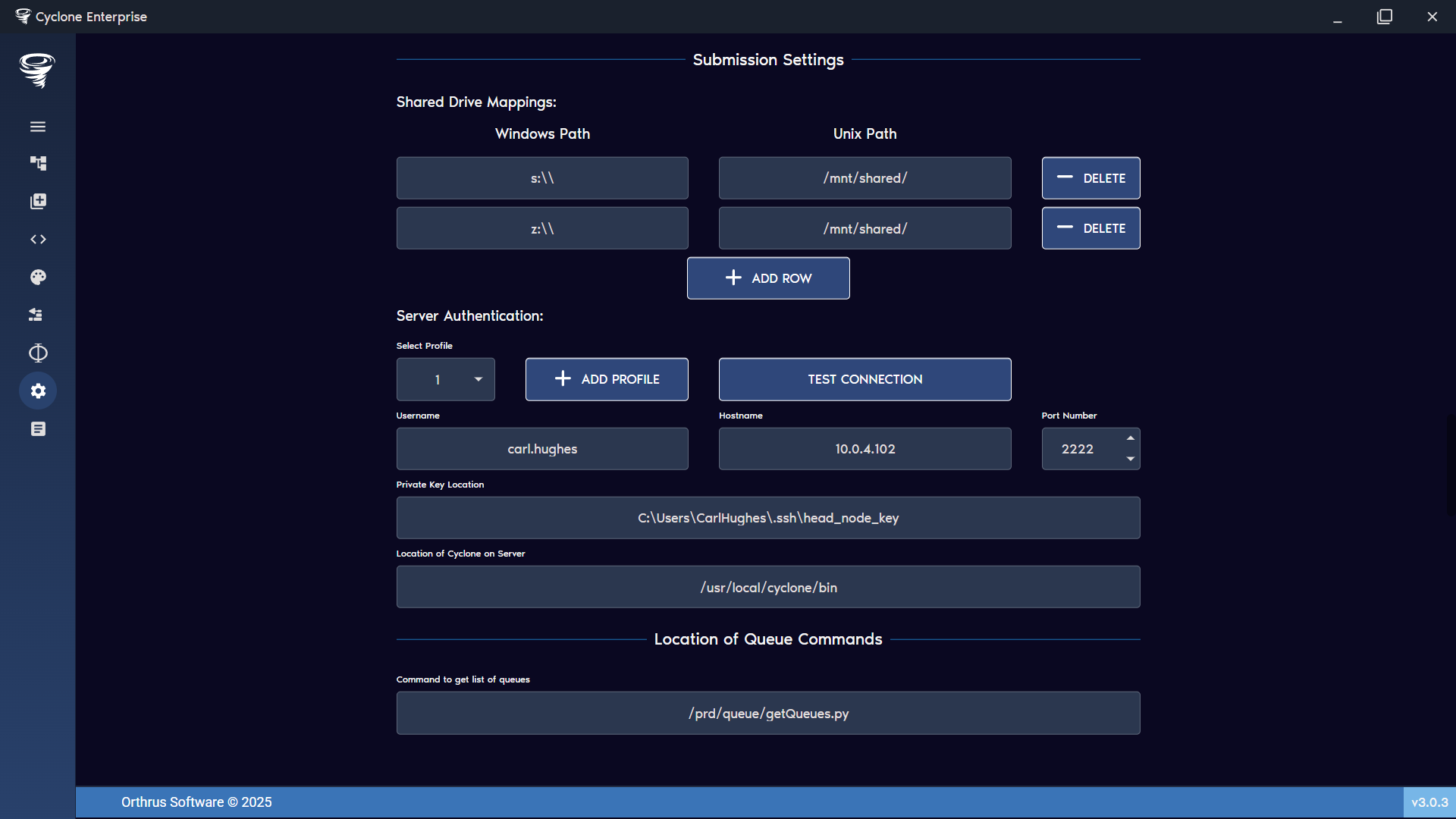
Figure 105: Settings – server settings
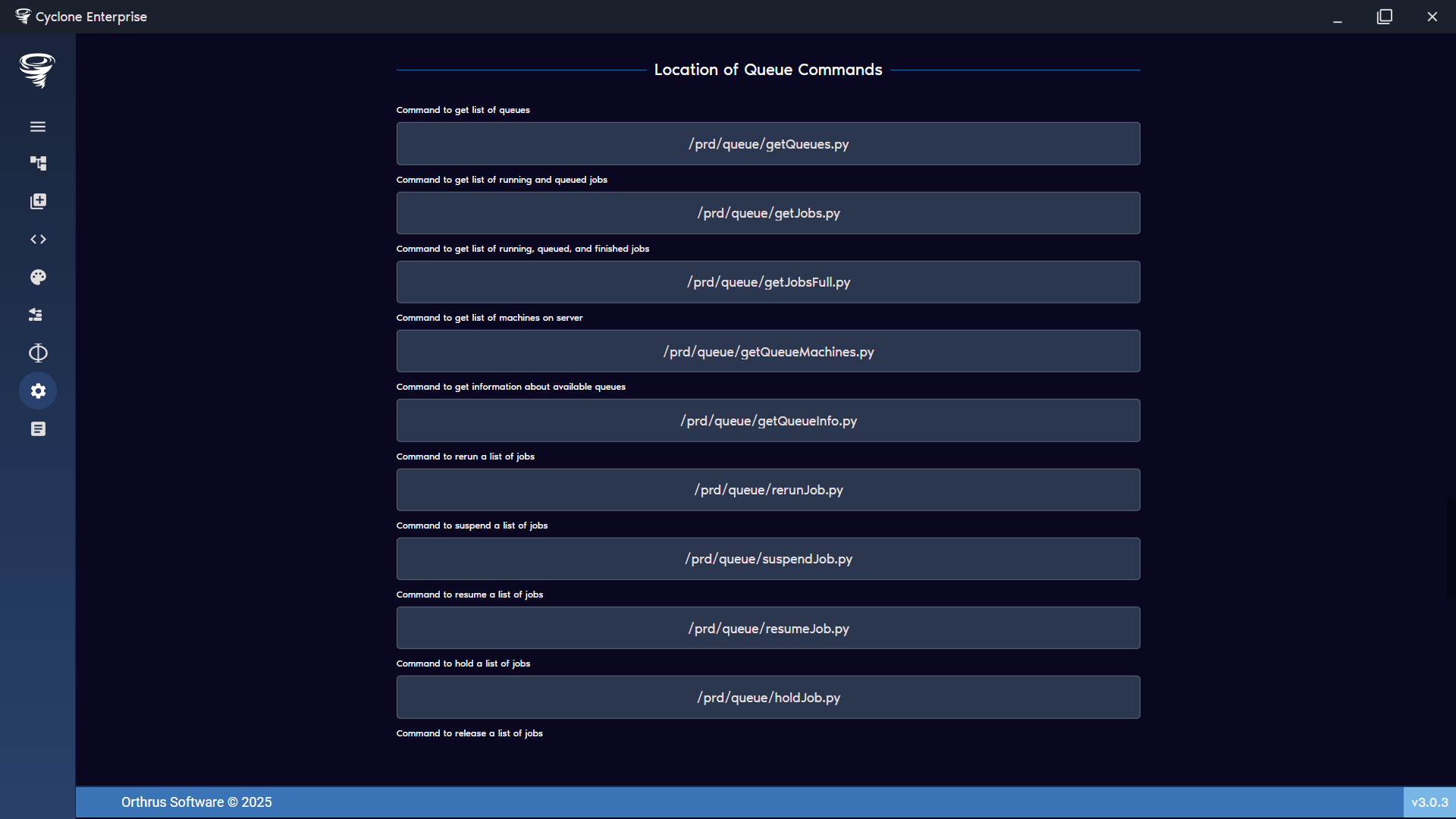
Figure 106: Settings – remote queue system files