Colour Schemes

Cyclone Manual - Colour Schemes

Throughout the 2D and 3D views, colour schemes are required when working with contours. Cyclone provides a large library of built-in colour schemes, and users can either create new schemes based on these or define entirely new schemes manually.

Manual Colour Scheme Creator

Manual colour schemes (Figure 90) can be created by defining upper values and assigning colours to them. Additional rows can be added as needed, this allows the user to build schemes with any number of value-colour mappings.

Calculator

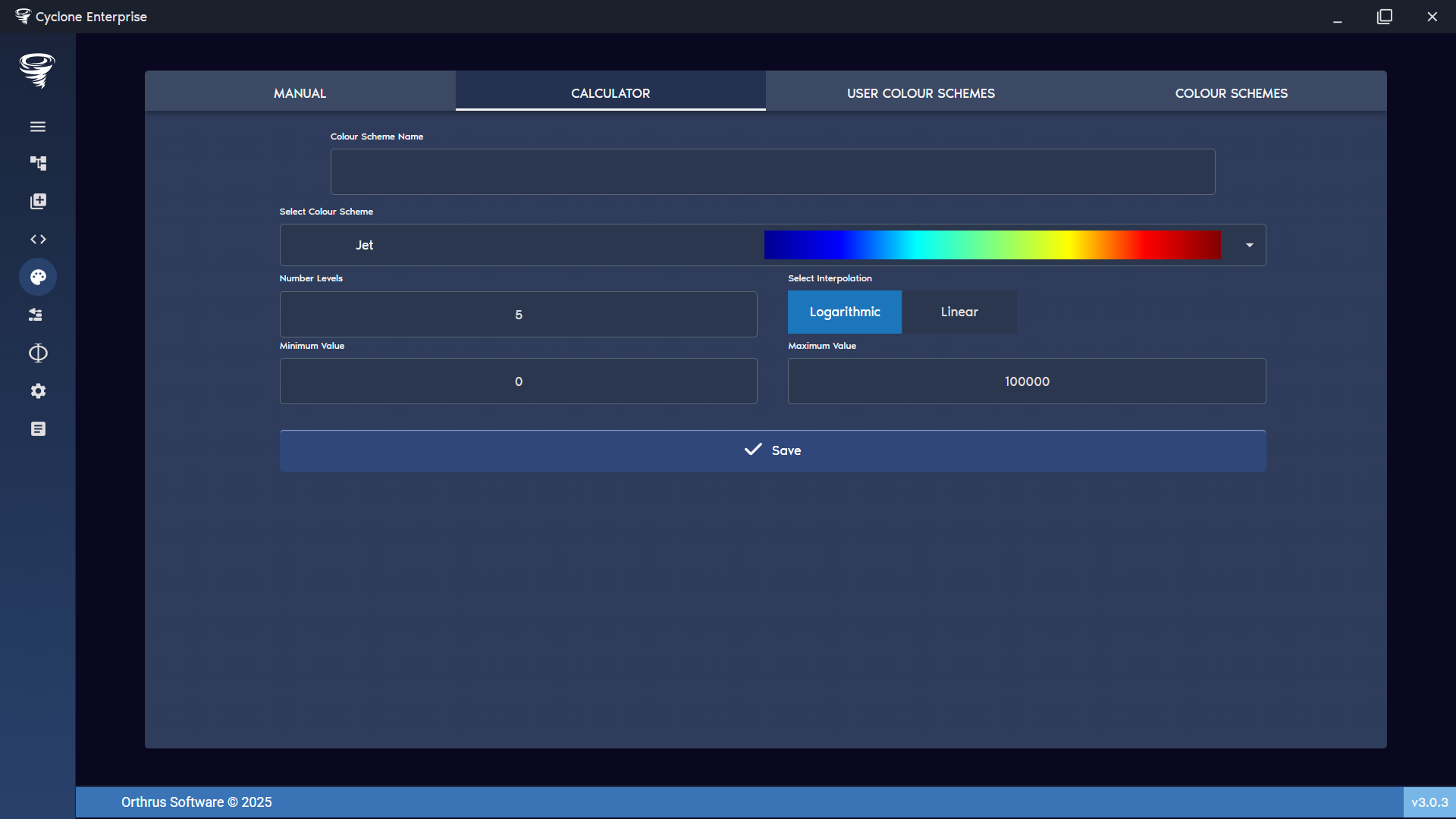
The Calculator (Figure 91) can generate a new colour scheme by subdividing an existing one into a specified number of levels between the chosen minimum and maximum values. Intervals can be calculated using either linear or logarithmic interpolation.

User Colour Schemes

Use colour schemes are shown in the user colour scheme table (Figure 92). Here colour schemes can be exported, imported or deleted.

In-built Colour Schemes

A full list of in-built colour schemes are shown in the colour schemes table (Figure 93).

Import/Export

Colour schemes define how scalar values (e.g., dose rates, fluxes) are mapped onto colours for visualisation. They can be exported from the application, edited externally, and re-imported, or shared between users.

JSON Structure

A valid colour scheme JSON must define a name, a set of values, and corresponding colours in normalised RGBA format.

Single Colour Scheme Example

JSON
1{
2  "name": "BlueToRed",
3  "Values": [0, 1, 2, 5, 10],
4  "Colours": [
5    [0.0, 0.0, 1.0, 1.0],
6    [0.0, 1.0, 1.0, 1.0],
7    [0.0, 1.0, 0.0, 1.0],
8    [1.0, 1.0, 0.0, 1.0],
9    1.0, 0.0, 0.0, 1.0
10  ]
11}

Multiple Colour Schemes Example

JSON
1{
2  "colour schemes": [
3    {
4      "name": "Greyscale",
5      "Values": [0, 1],
6      "Colours": [
7        [0.0, 0.0, 0.0, 1.0],
8        1.0, 1.0, 1.0, 1.0
9      ]
10    },
11    {
12      "name": "HotMetal",
13      "Values": [0, 2, 5, 10],
14      "Colours": [
15        [0.2, 0.0, 0.0, 1.0],
16        [1.0, 0.4, 0.0, 1.0],
17        [1.0, 1.0, 0.0, 1.0],
18        1.0, 1.0, 1.0, 1.0
19      ]
20    }
21  ]
22}

Required Fields

Each colour scheme entry must include:

  • Name – Unique identifier for the colour scheme.

  • Values – Array of numeric breakpoints (must be increasing).

  • Colours – Array of RGBA values corresponding to each breakpoint.

  • Each colour must be an array of four floats: [R, G, B, A].

  • R, G, B, A must all be normalised between 0.0 and 1.0.

  • The number of colour entries must match the number of values.

Import Process

  • Open the Colour Scheme Database.

  • Click the Import Colour Scheme button (bottom-right).

  • Select a JSON file.

  • The file will be validated:

  • Every entry must have a name.

  • Both Values and Colours must be provided.

  • Length of Values and Colours arrays must match.

  • Successfully imported colour schemes are stored in local storage under "colour-schemes".

After Import

  • Imported schemes appear in the colour scheme database.

  • They can be used immediately for gradient mapping in the visualiser.

  • They can also be exported again in JSON format.
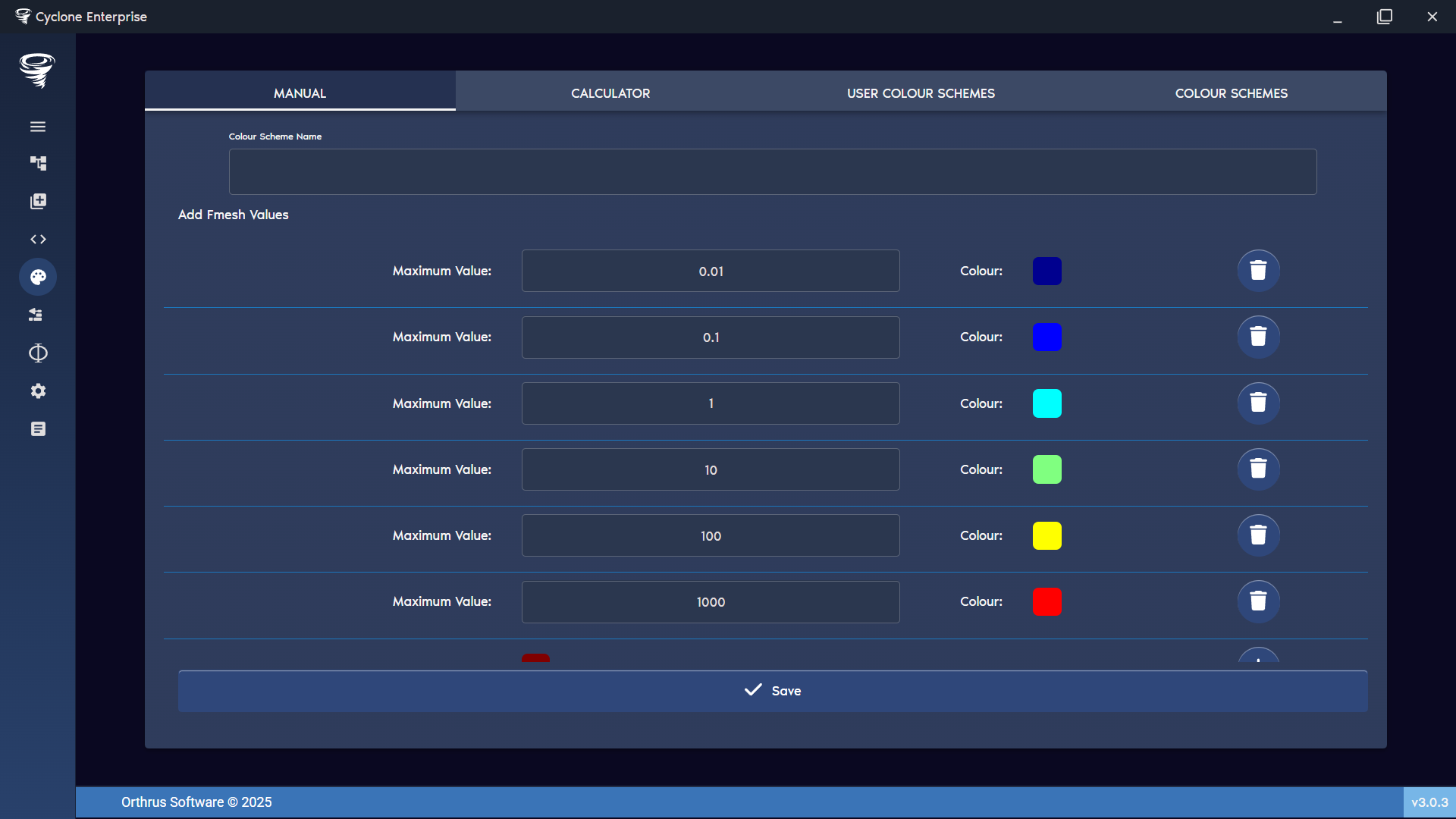
A screenshot of a computer AI-generated content may be incorrect.

Figure 90: colour creator – manual

A screenshot of a computer AI-generated content may be incorrect.

Figure 91: Colour creator – calculator
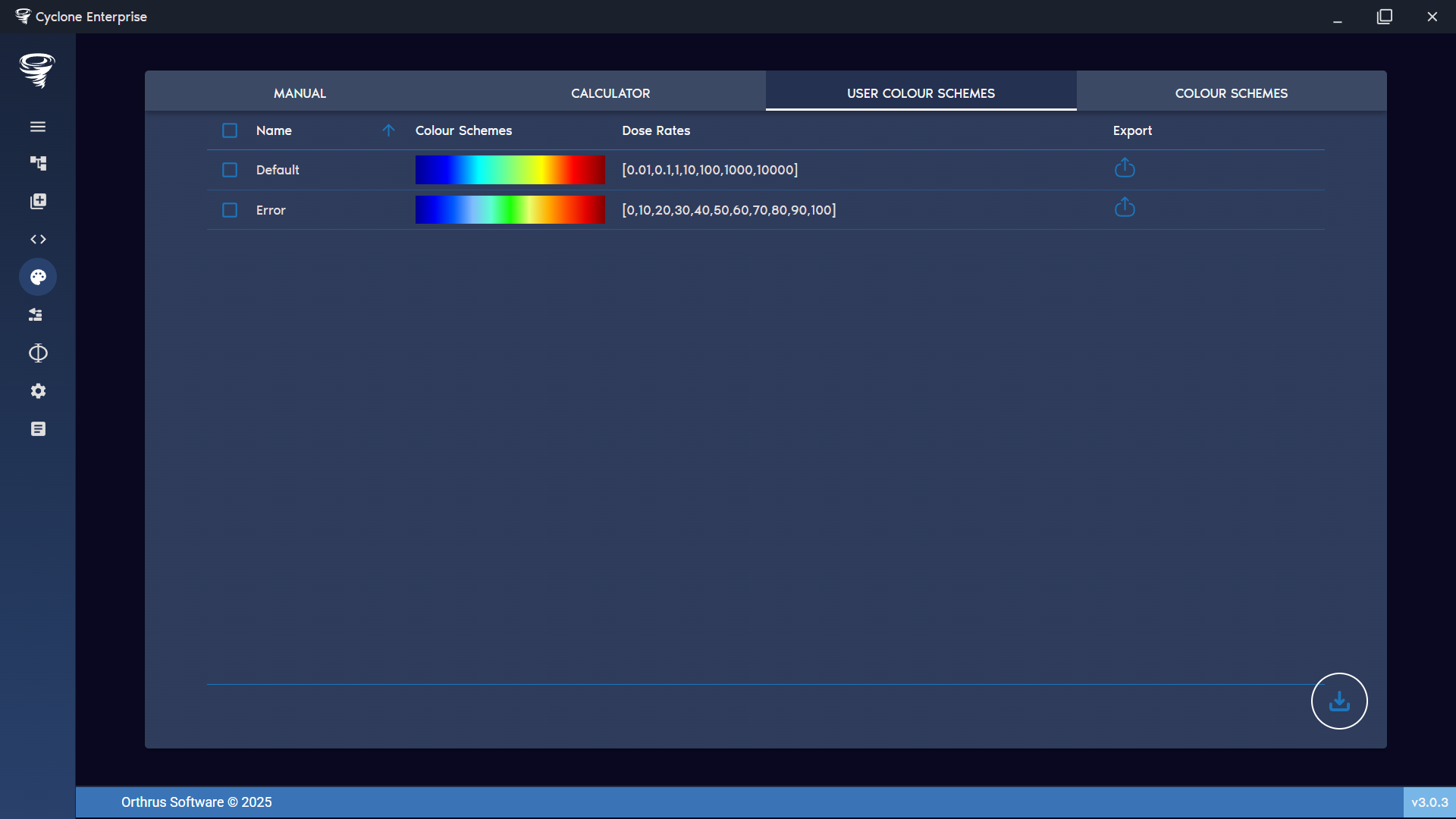
A screenshot of a computer AI-generated content may be incorrect.

Figure 92: Colour creator – user colour schemes
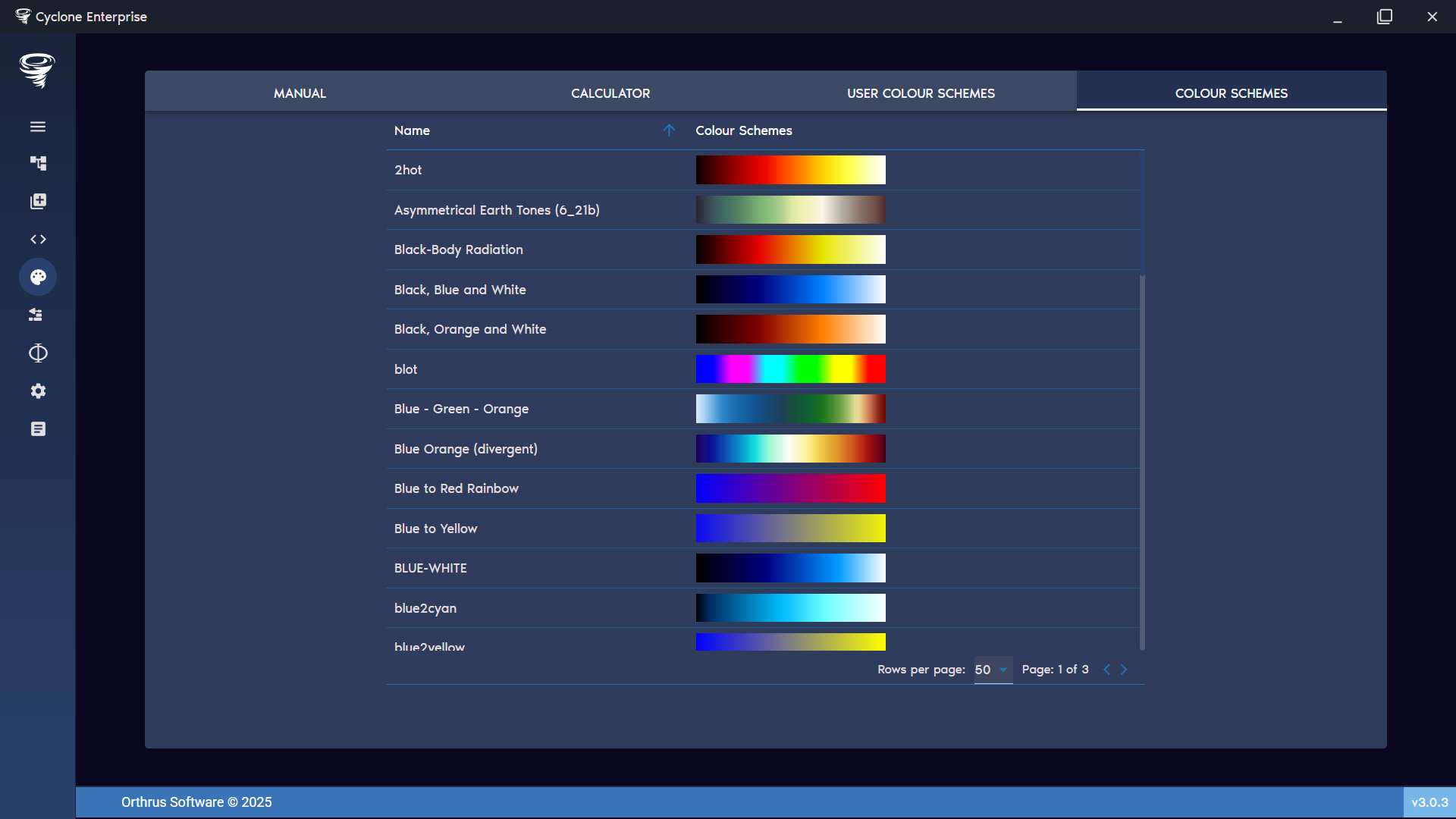
A screenshot of a computer AI-generated content may be incorrect.

Figure 93: Colour creator – in-built colour schemes

On this page
0 of 11