Queue System
Cyclone Manual - Queue System
Cyclone includes a simple built-in Queue System for managing jobs and can also connect to a remote Queue System (Enterprise Plan only).
Local Queue System
As described in Section 8.4, MCNP calculations (or “jobs”) can be queued by selecting the Queue button when setting up a calculation. The job is then added to a simple Queue System which runs locally on the machine through Cyclone. From the Queues option in the side menu, the user can view all jobs – failed, running, or completed – open job logs, access cases in the File Manager or download a complete case as a zipped folder. Jobs can be paused, resumed, deleted, stopped, or rerun directly from the queue manager interface. A job that is already running cannot be paused; it can only be stopped. When a job is stopped, it is removed from the running queue. Pausing applies only to jobs that are queued (but not running), and prevents them from starting until they are resumed. The Queue System is shown in Figure 13, and the job log is shown in Figure 14.
Remote Queue System (Enterprise Plan)
Cyclone can interface with a remote Queue
System. A series of call scripts are needed on the server end to
allow Cyclone to interface with it. These scripts can be written in any
programming language so long as they return the required information.
Example scripts for an OpenPBS \4
Queue System using Python are
provided in Appendix 2. The user
can specify each script in the settings. In addition to this,
authentication and access to the Queue
System is required. This is again specified in the
Settings section (see Figure
17).
Cyclone can display a list of jobs queued and running on the remote system to the user. The user can also switch between viewing a list of machines available on the remote system and a list of queued jobs. Jobs can be paused, resumed, deleted, stopped, or rerun, plus additional operations, provided the user has suitable accreditation to perform these operations.
Server Authentication
To access a remote server, Cyclone requires a username and target. The user must have access to the remove server via an SSH key. Cyclone can use the username, target, and SSH key to access the server. It will have the same privileges as the user does on the remote system. The user can check the connection is correct using the Test Connection button. Multiple user profiles can be created, but only one can be active at any one time. See Figure 16.
Queue Scripts
The Queue scripts required by Cyclone in order to interface with a remote Queue System are defined in Appendix 2. The location of these scripts can be specified by the user in the Cyclone settings. Once these scripts are defined, Cyclone can interact with the remote Queue System (see Figure 17).
Submitting Cases to a Remote Queue System
Cyclone assumes that both the main Cyclone machine and the remote server share a common mapped drive. For example, a shared drive named Cyclone-SharedDrive might be mapped to s:\ on the Windows machine running Cyclone and to /mnt/shared on the remote server.
When submitting a file, Cyclone automatically replaces the s:\ portion of the path with /mnt/shared and converts it to Unix-style paths. This ensures the Cyclone runner on the remote server can locate and process the file correctly.
The user can manage all shared drive maps in the Cyclone Settings. See Figure 18.
Queue Template
To run jobs on the remote server, a queue template file is required. For each submission, Cyclone generates a queue file from this template, automatically filling in certain variables. A full list of available variables is provided in Section 12.14. This generated queue file is then submitted to the Queue System to run the job. An example queue template for an OpenPBS system is given in Appendix 1.
Future Development
We recognise that the current method Cyclone uses to run jobs on a remote server may not suit all environments, and we are actively exploring alternative approaches. One option under consideration is a service running on the head node that can handle sending, receiving, running, and returning files.
If you would like to provide feedback or influence this development, please contact us at support@orthrussoftware.com.
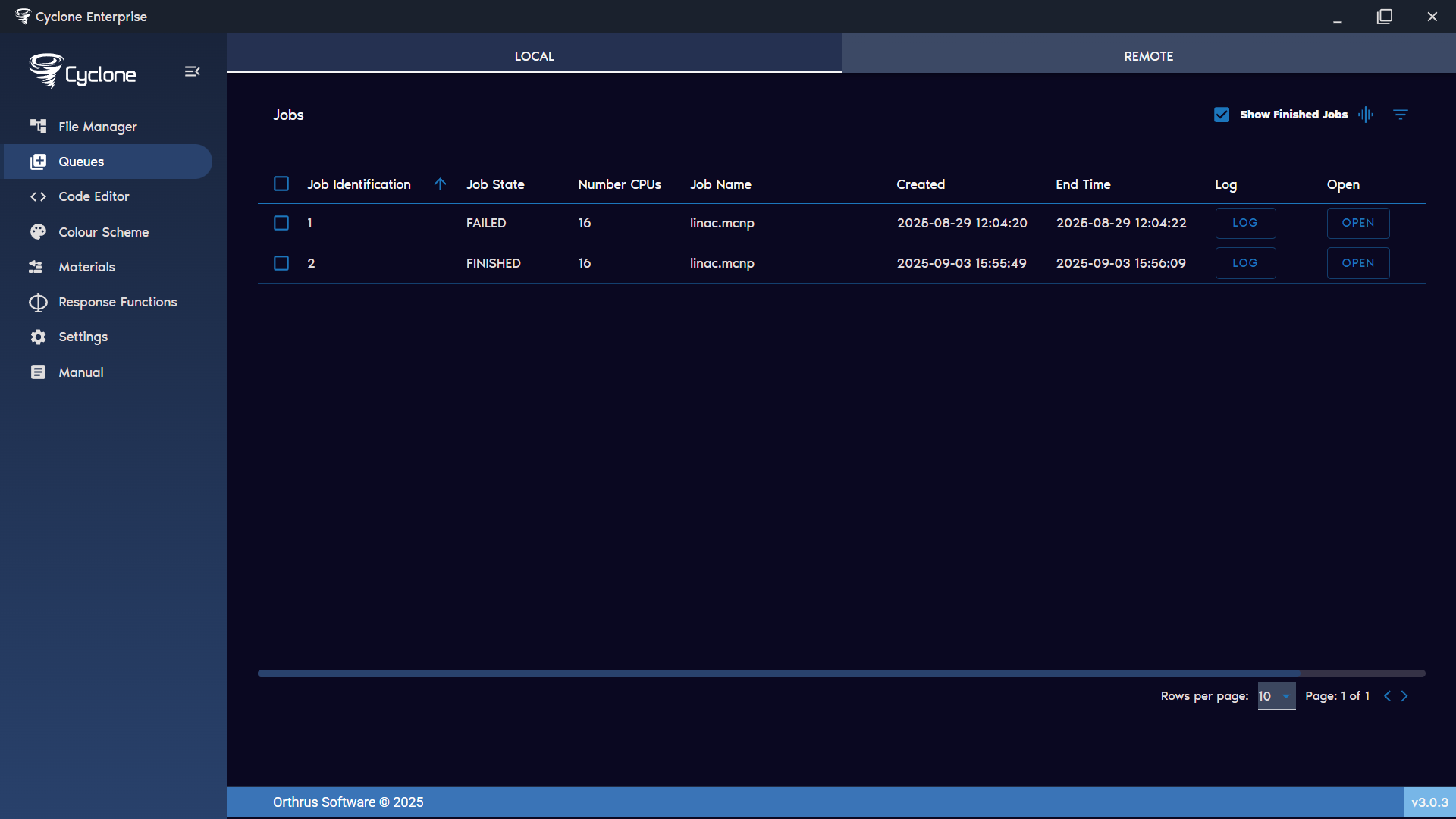
Figure 13: Simple queue system
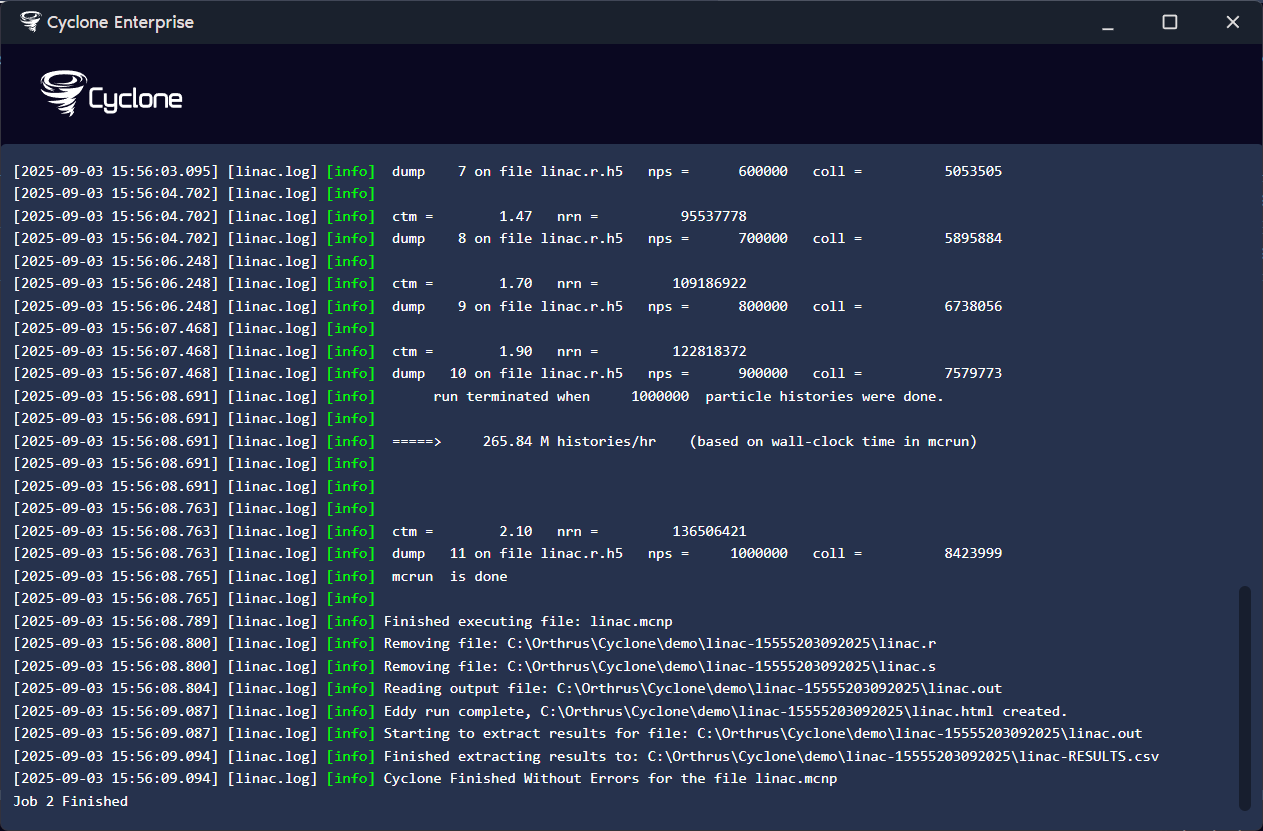
Figure 14: Job log window
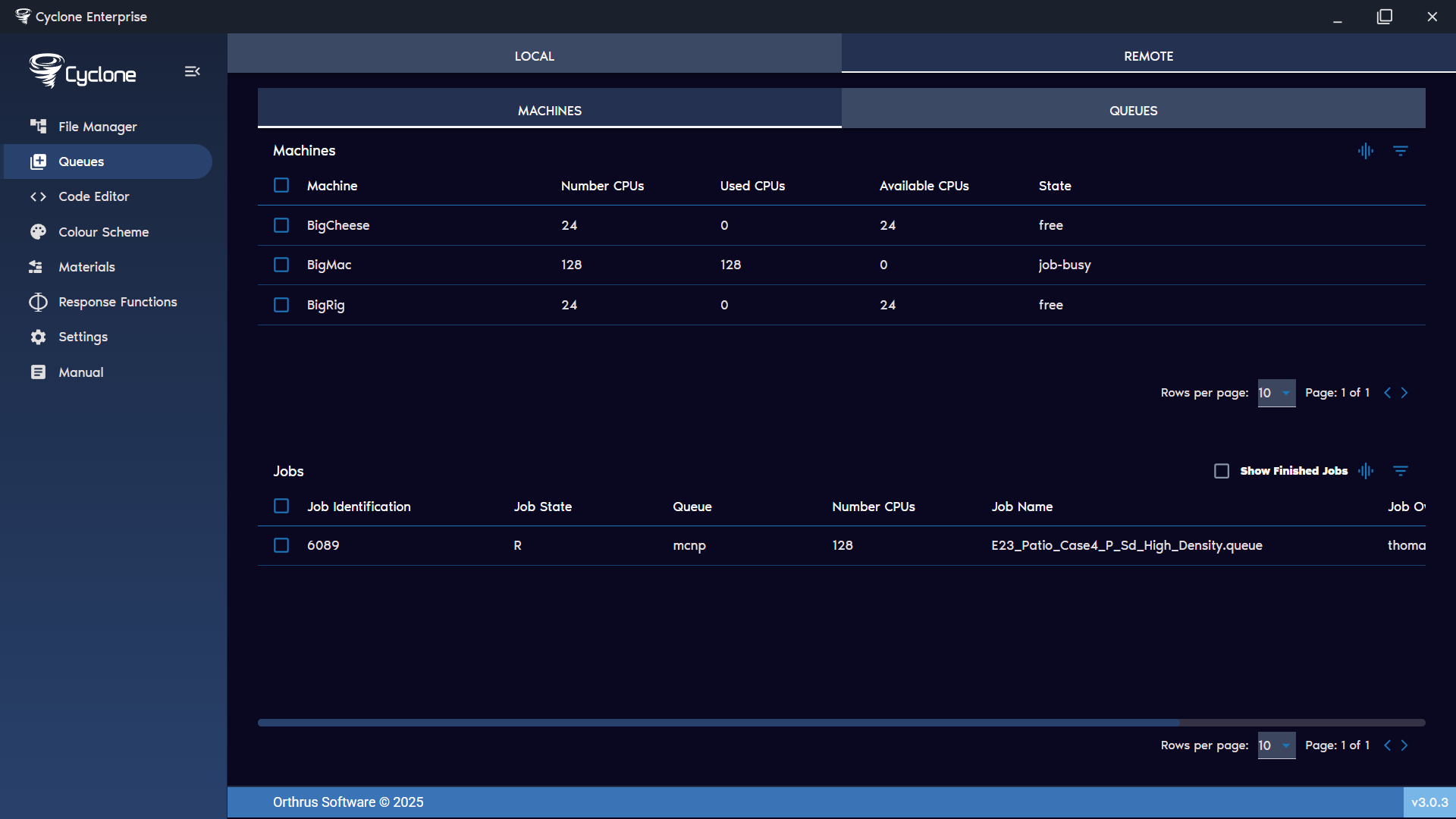
Figure 15: Remote queue system
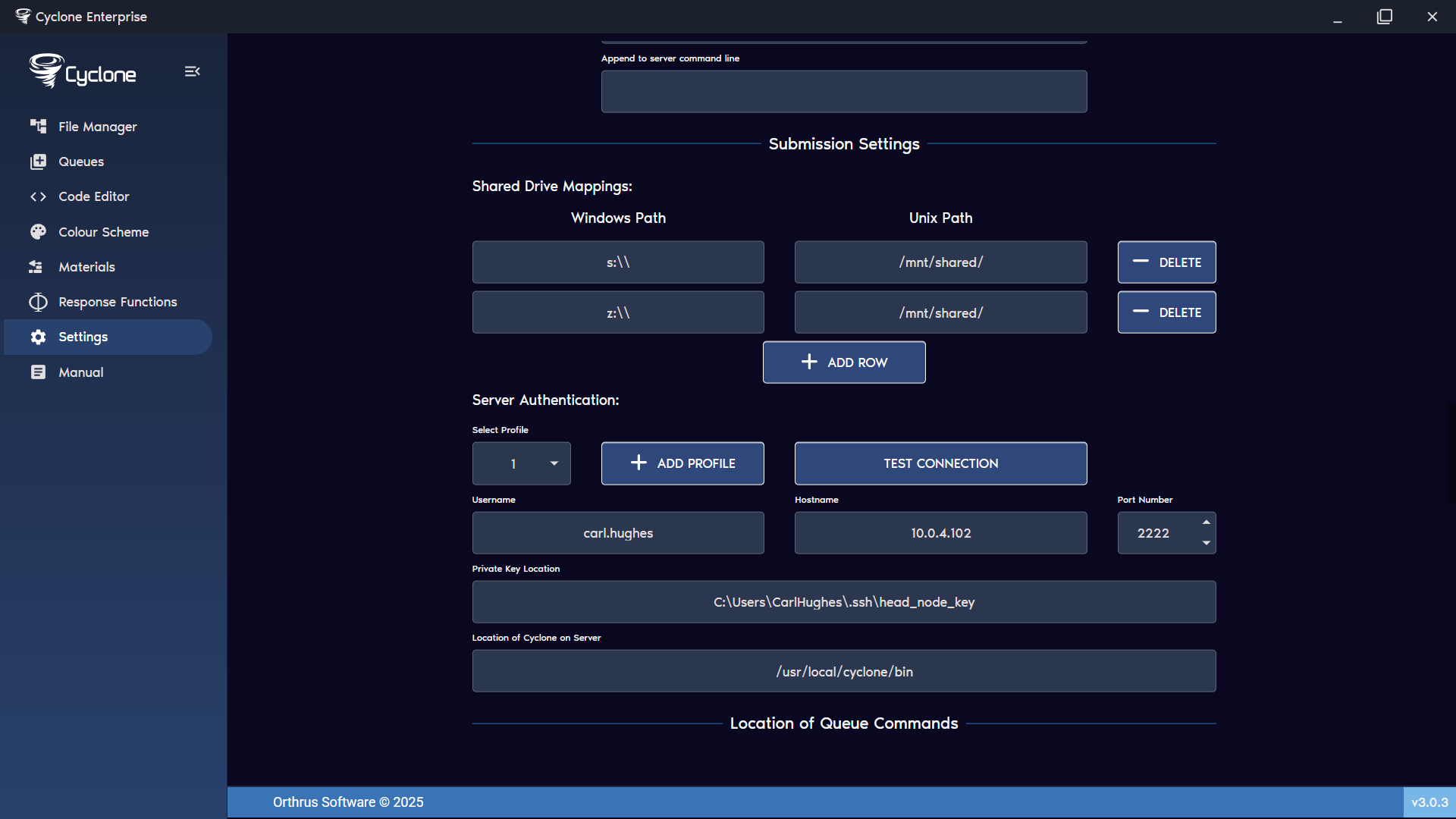
Figure 16: Remote server authentication
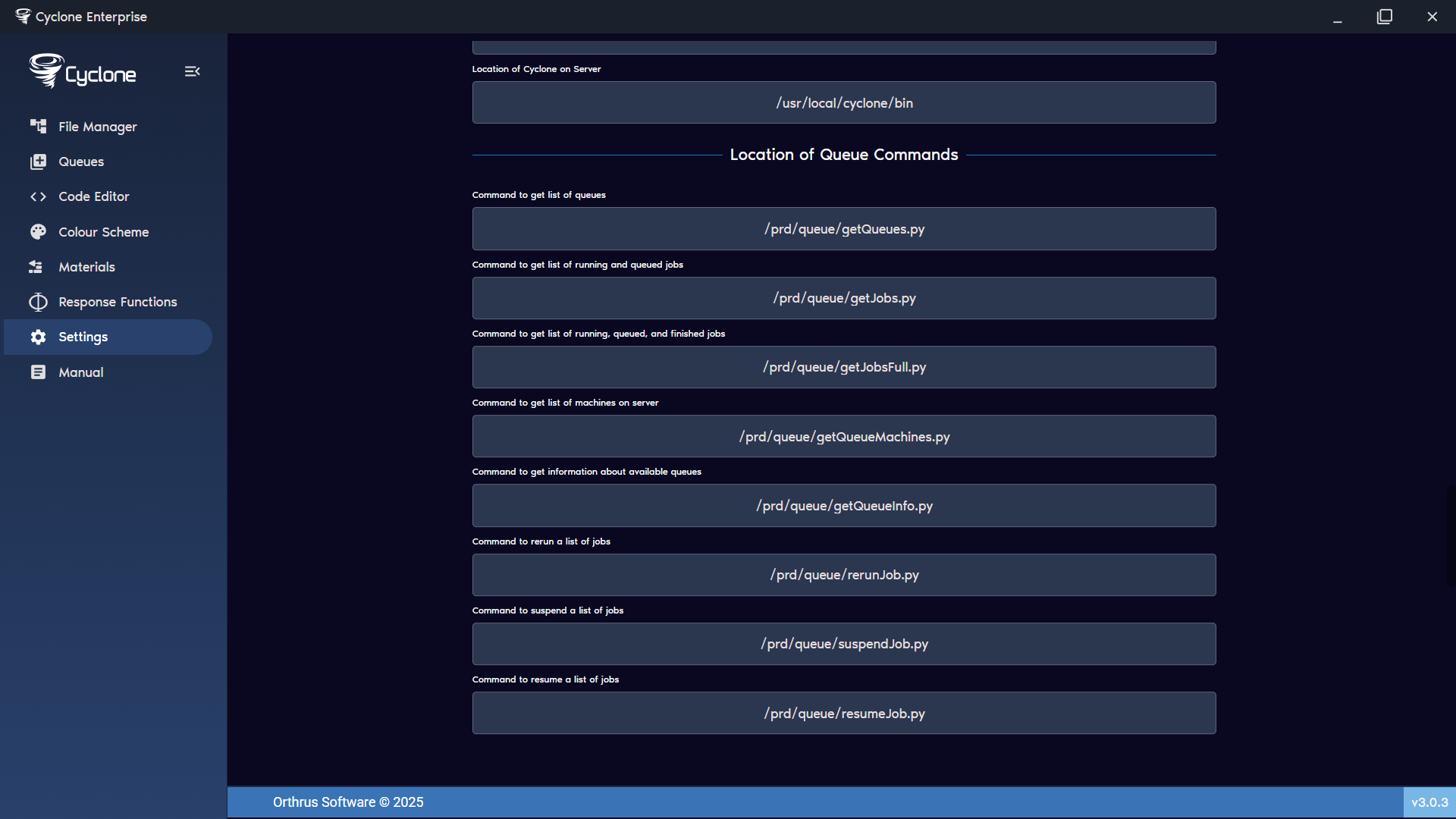
Figure 17: Location of remote server queue scripts
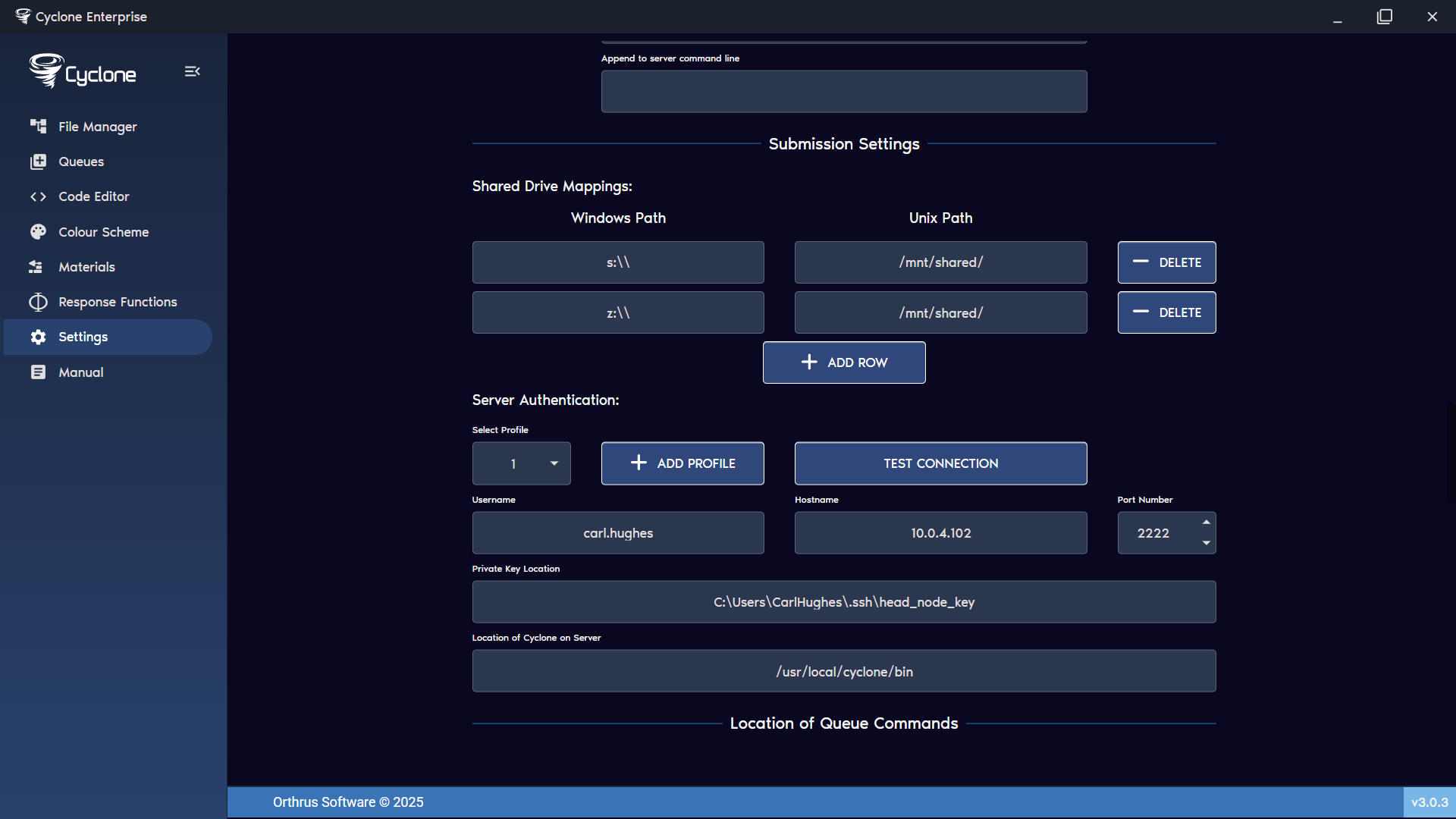
Figure 18: Shared drive mapping